Google Tag Manager Workspaces

August 12, 2026

Are you running multiple tracking updates at once and worried about breaking your live site?

It happens easily.

You are building out a new e-commerce configuration, while a colleague is tweaking a form submit trigger.

If someone hits publish too early, half-configured tags go live.

There is a simple fix for this chaos: Google Tag Manager workspaces.

They are a fantastic, though sometimes overlooked, feature that ensures safer deployments and cleaner data.

Table of Contents

Key Takeaways

  • Workspaces act as temporary draft containers, letting you isolate tracking changes.

  • The 2026 UI update hid the workspace menu, but you can restore it via User Settings.

  • Creating workspaces around specific projects, rather than individual users, prevents disorganisation.

  • Always resolve tag conflicts before publishing to avoid overwriting a colleague’s work.

What is a workspace?

Think of a workspace as a temporary container or a development branch.

It allows you to create different draft environments inside a single Tag Manager setup.

This means you can isolate your changes.

You could be working on a major e-commerce setup in one scenario, while someone else tests new form submissions in another.

Working in these separate draft environments ensures that broken or incomplete tags do not accidentally reach your live environment.

You can test safely, knowing that your work remains isolated until it is turned into a version and published.

Where to find workspaces

If you have logged in recently, you might have noticed the workspace picker on the left sidebar is missing. Google introduced a cleaner UI in 2026, which hid some management tools behind a few extra clicks.

You have two simple ways to find them:

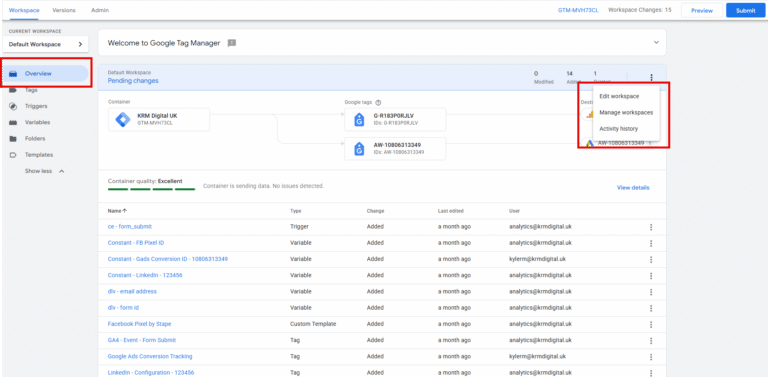
  1. The Overview Section: Click the overflow menu (the three vertical dots) in the top right, then select ‘Manage Workspace’. From there, hit the plus button to add a new one.
Overview Workspace section
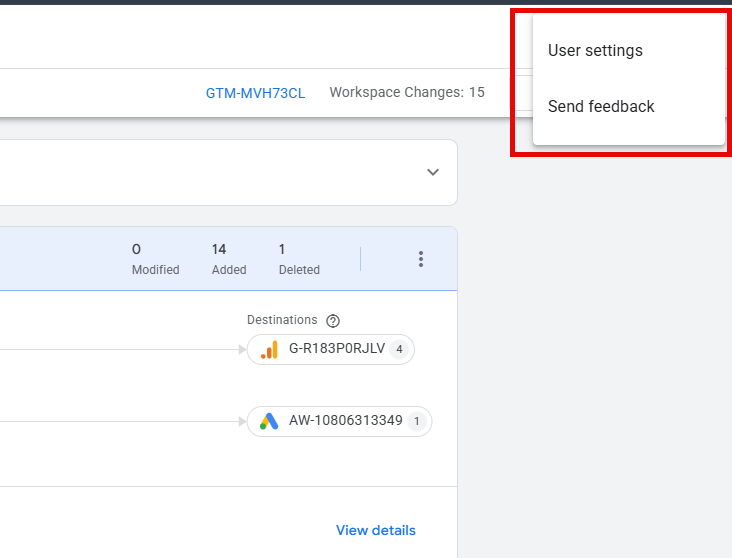
  1. Container Settings: If you prefer the old layout, go to your user settings at the top. Under application preferences, tick the option to always show current workspaces. This brings the menu back to your left-hand sidebar.
User Settings Workspace

Managing Versions and Resolving Conflicts

Spaces are essentially just container drafts. Once you are ready, you can either create a version or hit publish.

Publishing automatically creates a version first, then pushes it live as the new container.

Conflicts

But what happens if a colleague publishes a container version while you are still working on your draft?

You will likely see a conflict.

A conflict arises when a tag, trigger, or variable was changed in a later version, and you also modified that exact item in your current workspace. You must resolve these conflicts before you can push your own work live. It is a brilliant safeguard that prevents users from overwriting each other’s work.

Governance Rules

You can make granular changes without disrupting other users, but good communication always rules over any feature.

If you manage a large organisation, you need strict governance.

  • Focus on Projects, Not People: Structure your drafts around specific projects (like a pixel update or an e-commerce rollout) rather than creating one for each user.
  • Define a Lifecycle Policy: Set clear guidelines on how long a workspace remains open. Keep them active for ongoing projects, review stale ones for closure, and delete merged ones after a successful deployment.
  • Set Clear Access Controls: Establish a clear environment hierarchy and implement specific variables for each setup.

Google Tag Manager workspaces provide a safe, isolated environment to build and test tracking changes without risking your live container.

By structuring workspaces around specific projects, clearing out inactive drafts, and resolving tag conflicts before publishing, analytics teams can maintain full control over their container updates.

Adopting these habits ensures your deployments stay clean, accurate, and completely stress-free.

Frequently Asked Questions

Can multiple users work in the same GTM workspace?
Yes, but it increases the risk of overlapping changes. It is much safer to assign a dedicated workspace to each specific project.

What happens to a workspace after I publish it?
Once turned into a version and published, the changes merge into the live container. You should then delete the drafted workspace to keep your account tidy.

Why can I not see my workspace menu?
The 2026 UI update removed it by default. You can easily restore it by updating your application preferences in the User Settings.

Kyle

Author

Hello, I'm Kyle Rushton McGregor!

I’m an experienced GA4 Specialist with a demonstrated history of working with Google Tag Manager and Looker Studio. I’m an international speaker who has trained 1000s of people on all things analytics.

Scroll to Top