
Google Tag Manager Workspaces

August 17, 2026

When I audit Tag Manager’s, or set new ones up, there’s a variable I used that is often forgotten.

And that’s the Container ID variable.

Table of Contents

Key Takeaways

  • Instant Tag Attribution: Adding Container ID helps you immediately verify whether events originate from Google Tag Manager or external scripts.

  • Pinpoint Broken Deployments: Pairing Container ID with Container Version Number in GA4 custom dimensions isolates tracking errors to specific updates.

  • Simplified Troubleshooting: Streamlines event setup by standardising container metadata across all tag configurations.

Where is the Container ID Variable?

Setting up this variable takes less than two minutes.

Inside Google Tag Manager, you do not need to build custom JavaScript or write complex lookup tables.

The built-in options already have you covered.

Here is where to find it:

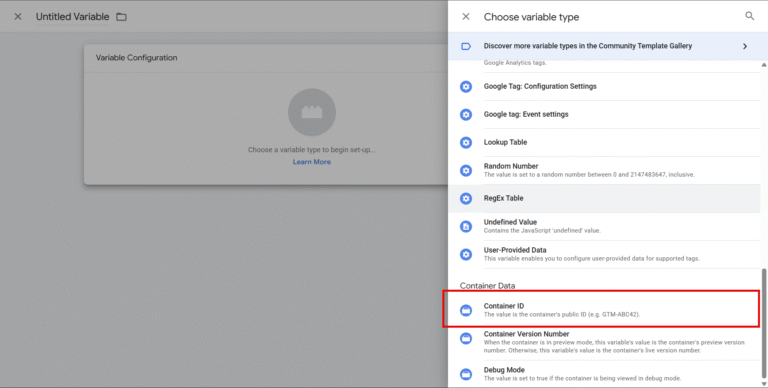
  • Go to Variables in the left-hand menu.
  • Under User-Defined Variables, click New.
  • Select Variable Configuration.
  • Scroll to the Container Data section.
  • Select Container ID.

Name your variable Container ID (or something like that) and click Save.

Container ID in the Variable section

Once created, you can attach this variable to your standard GA4 Event tag templates, Configuration tags.

My preferred approach is always to use the Event Settings variable and add the Container ID that way.

That way, every single payload sent to GA4 carries its origin identity with it.

Debugging Events

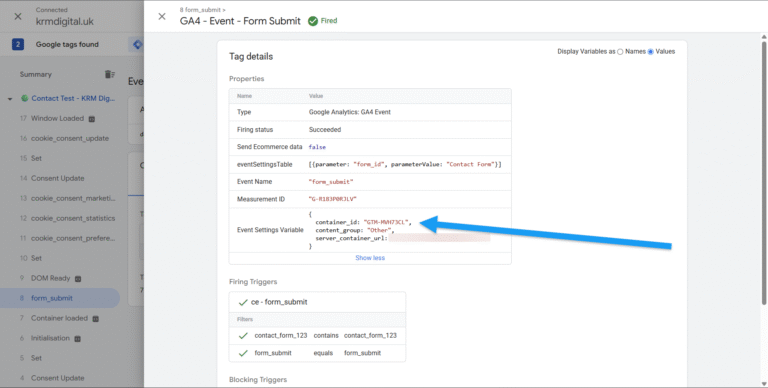
When you fire up Preview Mode in Tag Manager or inspect network requests in Chrome Developer Tools, having the Container ID attached to your events gives you immediate clarity.

Suppose you notice duplicate page views or unexpected event parameters coming through in your testing.

Without container metadata, you are left guessing.

With Container ID attached, you instantly know whether the event came directly from your primary GTM workspace (GTM-XXXXXXX).

If the Container ID is missing or shows a different value, you can immediately rule out your primary container and focus on finding hardcoded scripts or secondary tag containers.

I’ve found this especially useful when debugging and auditing Shopify sites fyi.

Container ID in Debug Mode

Pairing it with Container Version

Identifying the container is a great first step, but pairing it with the Container Version Number variable takes your troubleshooting to a much higher standard.

Sites change constantly.

Developers release updates, marketers add new marketing pixels, and tag builds get updated.

If event tracking breaks after a site release, how do you verify whether the tag container or the website code caused the issue?

By passing both Container ID and Container Version Number into GA4 as Custom Dimensions, you create a complete audit trail inside your analytics reporting.

When an anomaly appears in your reports, you simply create a quick custom report or segment by version number.

You can pinpoint precisely when a tracking error began and identify the exact GTM release responsible for the change.

Adding a Container ID variable to your tag configurations is one of those small, high-yield tracking habits that pays dividends every time you troubleshoot.

It removes guessing games from event debugging and gives your agency or marketing team (or you as a freelancer) complete visibility over incoming data.

Frequently Asked Questions

How do I register Container ID as a Custom Dimension in GA4?
To view Container ID inside your standard GA4 reports, go to Admin > Custom Definitions > Custom Dimensions. Click Create Custom Dimension, set the dimension name as “GTM Container ID”, set the scope to Event, and enter container_id as the event parameter.

Does adding Container ID to every tag slow down site performance?
No. The Container ID variable is evaluated locally within the Google Tag Manager container during runtime. It adds zero external network requests and has no measurable impact on page load speed or Core Web Vitals.

What is the difference between Container ID and Container Version Number?
Container ID is the unique string (for example, GTM-P123456) that identifies your GTM container. Container Version Number represents the specific published iteration (such as Version 14) of that container.

Kyle

Author

Hello, I'm Kyle Rushton McGregor!

I’m an experienced GA4 Specialist with a demonstrated history of working with Google Tag Manager and Looker Studio. I’m an international speaker who has trained 1000s of people on all things analytics.

Scroll to Top