GA4 Device Category Report

March 8, 2026

You want a clear view of your traffic and conversion rates split by mobile, desktop, and tablet, but the data is not always immediately visible.

The good news is that the information is absolutely there.

We are going to look at a few simple ways to gather this data and build a custom device category report from scratch so it is always available at the click of a button.

Table of Contents

Key Takeaways

  • Locate the hidden device category data within standard user reports.

  • Change your default dimensions so you see device data first.

  • Add essential metrics like session key event rate to accurately measure conversions.

  • Create custom scatter plots in the Explore section for powerful visual analysis.

Prefer to watch a video?

Where is Device data in GA4?

While it isn’t always apparent where Google has tucked it away, finding your basic device data is quite straightforward once you know the path.

Option 1

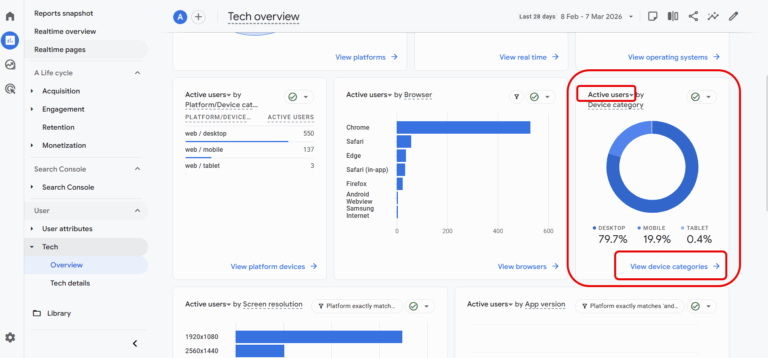
If you click on the Reports section and then look underneath User, you can click on Overview and scroll down.

You should be able to see a card displaying active users by device category.

There is a dropdown menu where you can choose a different type of user, such as returning or new users.

From here, you also have the option to click the text that says View Device Categories.

This opens up the full tabular report located in the Tech Details section.

Option 1 - device category

Option 2

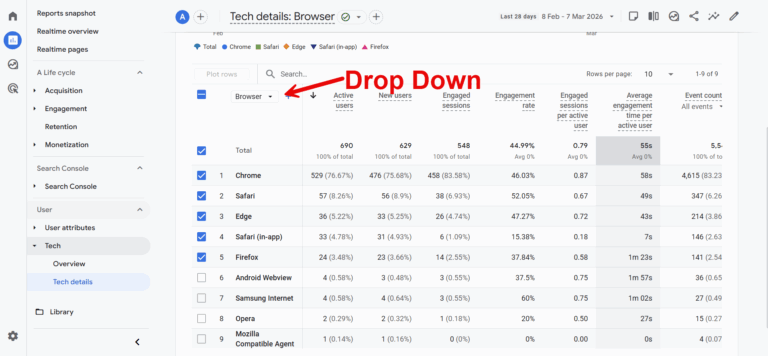
Another quick route is to simply go straight to Tech Details.

By default, this report starts with the ‘Browser’ dimension.

You can quickly change that to ‘Device category’ using the dropdown menu above the first column.

Tech Details Report 2

Making Device Category Your Default View

It is incredibly annoying to have to change the dropdown menu from ‘Browser’ to ‘Device category’ every single time you open the report.

Thankfully, you can fix this permanently.

If you find that browser data is not a priority for your daily checks, you can change the default setting.

Here is how you do it:

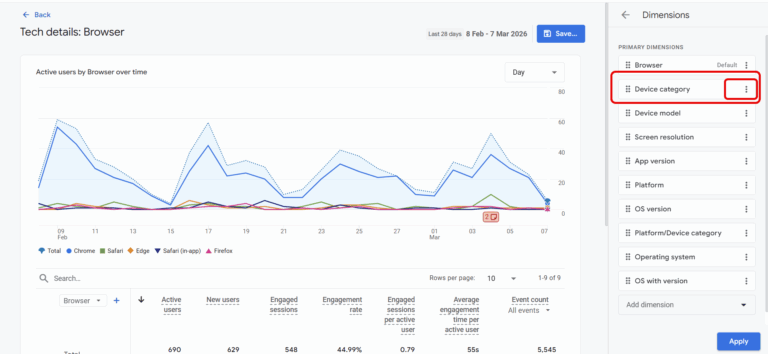
  1. Click the Customise report option (the pencil icon) at the top right of the screen.
  2. Choose Dimensions.
  3. Click the three dots next to ‘Device category’ and select Set as default.
  4. Click Apply.

Finally, click Save changes to current report.

The next time you go to your Tech Details report, the device category will be the standard dimension you see.

making default

Customising Your Metrics for Better Insights

Traffic volume is helpful, but conversions pay the bills.

Your default device category report gives you an overview of what is happening using standard metrics like key events, revenue, active users, and engaged sessions.

However, you might want to add metrics that offer deeper commercial value.

For example, adding Session key event rate gives you a precise percentage of conversions broken down by device category. This tells you exactly how effectively your mobile experience converts compared to your desktop site.

When you are in the customised report option, you can easily add this metric.

Once you are happy with the layout, you can save it as a completely new report and add it directly to your reporting library for quick access.

You can learn more about customising reports here.

Taking it Further with Custom Explorations

Standard reports are great for quick checks, but you can build much more robust visualisations using the Explore section.

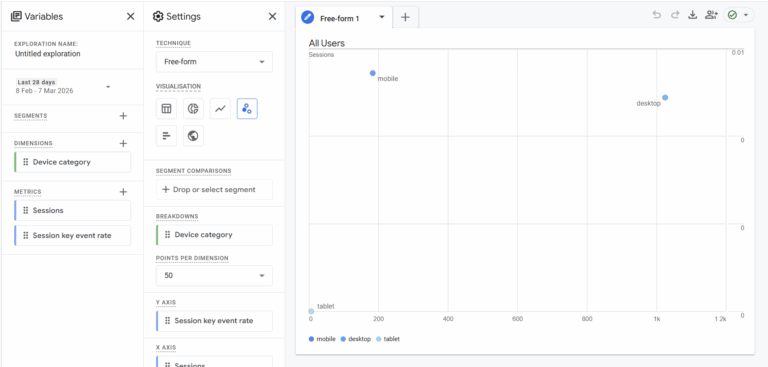
If you want to start from scratch, click on Explore and create a new blank exploration.

  1. In the Variables panel, import Device category as your dimension.
  2. Import Sessions and Session key event rate as your metrics.
  3. Double-click these to add them to your canvas.

This gives you a clear view of session volume alongside the conversion rate. To make this even more actionable, change the visualisation format to a scatter plot.

A scatter plot provides a brilliant visual representation of your data, immediately highlighting which devices drive high traffic volume versus which devices drive actual commercial value.

Summary

You can find your device data hiding within the User Overview section, or by switching the primary dimension in your Tech Details report.

Save yourself repetitive clicks by editing the report and setting ‘Device category’ as your default view.

Most importantly, do not just look at traffic. Pull in metrics like ‘Session key event rate’ to your standard tables, or build a custom scatter plot in the Explore section.

This gives you a crystal clear view of which devices actually convert.

Frequently Asked Questions

What are the standard device categories in GA4?

Google Analytics 4 groups devices into three primary buckets: desktop, mobile, and tablet.

Why is my GA4 device report showing browser instead?

In the standard Tech Details report, ‘Browser’ is set as the default primary dimension. You can change this temporarily using the dropdown menu or permanently by editing the report with the pencil icon.

Can I see conversion rates by device in GA4?

Yes. To see conversion rates, you need to edit your standard report or create an exploration and add the ‘Session key event rate’ metric to your data table.

Kyle

Author

Hello, I'm Kyle Rushton McGregor!

I’m an experienced GA4 Specialist with a demonstrated history of working with Google Tag Manager and Looker Studio. I’m an international speaker who has trained 1000s of people on all things analytics.

Scroll to Top