

Decluttering Google Tag Manager
Learn how to declutter, condense, and codify your setup for streamlined maintenance and flawless tracking accuracy.
If you have ever inherited a messy Google Tag Manager container, you know the frustration.
Version 42 is titled “Update”, Version 43 is titled “Fix”, and Version 44 is simply “Test”.
Six months later, nobody remembers who added that custom HTML tag or why a tracking pixel was adjusted.
Keeping clean container records takes effort, and when deadlines loom, proper documentation often falls off the priority list.
Google has introduced an AI-assisted feature in GTM that automatically generates version names and descriptions when you publish changes.
It is a welcome addition that raises the quality of container hygiene.
But should you rely on it blindly?
Here is how to use this feature effectively, where it falls short, and combine it with best practice.
Google Tag Manager now automatically suggests version names and detailed summaries based on your recent container changes.
While AI summaries capture technical tag and trigger edits, adding human context (author, ticket references, business intent) remains essential.
Always review AI output before publishing to catch hallucinations or omitted details.
Standardising GTM version descriptions builds stronger team accountability and audit trails across marketing operations.
Google Tag Manager now features an automated option when you go to publish your GTM container.
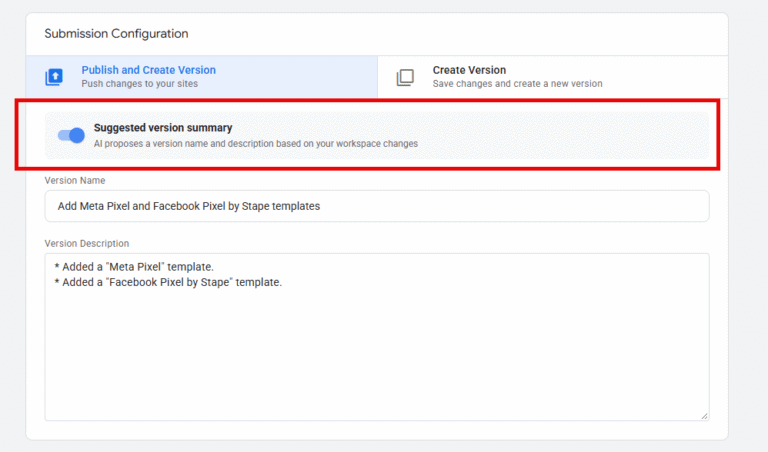
When you finish modifying tags, triggers, or variables and click Submit, you will see a toggle labeled Suggest version summary.
This option is switched on by default.
When active, GTM analyses the modifications made during your session and drafts a suggested version name alongside a detailed version description.
Instead of leaving the description field blank or typing vague summaries, the system puts together a breakdown of modified elements, updated templates, and newly added tags.
Indeed, it’s probably more than I would neccessarily add because I tend to just add context. (More of that below)
For agencies and internal marketing teams managing multiple containers, this feature immediately improves baseline documentation. It removes the friction of starting from a blank text box, encouraging better tracking habits across the board.
When you submit a container, the built-in model inspects the changeset between your current workspace and the live version. It identifies modified triggers, newly created variables, and updated tag configurations.
It tends to add lots of information that I potentially wouldn’t have added. It goes into real depth around the template and the tags that have been added and updated. It’s a really useful start, and having it on by default raises the version history standards that we’re seeing.
The system excels at listing mechanical edits. If you added a GA4 event tag for form submissions and updated a custom JavaScript variable, the tool outlines those exact components in granular detail.
However, while the tool tracks what changed, it cannot know why those changes occurred.
Automated tools are helpful assistants, but they should not be the only thing you use. You should also use your noggin.
As with most AI tools – it can literally make up stuff or miss things out.
(I’m sorry, please forgive me, AI overlords)
If you publish changes without reviewing the generated summary, you risk saving inaccurate documentation into your permanent container logs.
Always read through the generated text, correct any inaccuracies, and ensure every detail matches reality.
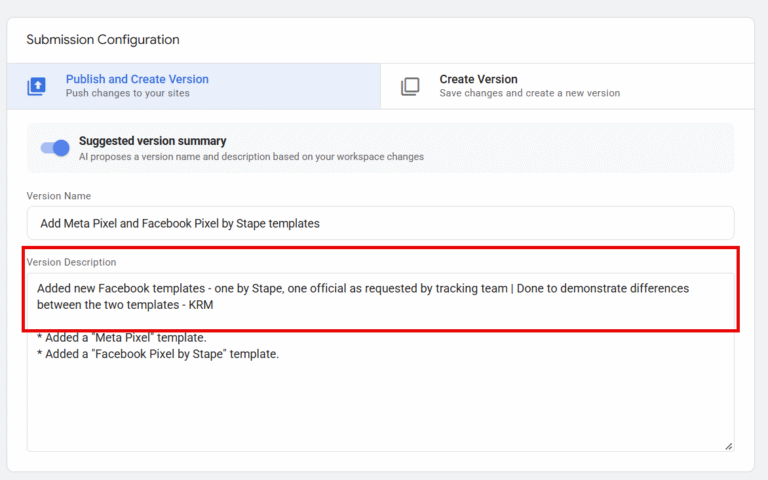
To build a truly reliable audit trail, treat the automated output as a draft. Leave a couple of blank lines at the top of the description box and insert key business context before saving.
Here are four crucial pieces of information to add manually:
For example, after performing a tracking audit, a clear version note might read:
GTM Audit Implementation | Changes per Audit Doc [URL] as requested by Marketing Team | Updated GA4 purchase event triggers to fix duplicate conversions – KRM
Standardising container documentation pays dividends when onboarding new team members or troubleshooting broken tracking setups months down the line.
To establish proper governance across your marketing stack:
By combining automated technical summaries with human context, you build a container history that offers genuine value to developers, analysts, and marketing managers alike.
This kind of stuff isn’t sexy – but it’s sustainable tag management, and so so neccesary.
Is the GTM AI version summary enabled by default?
Yes, the toggle for suggesting version summaries is switched on by default in Google Tag Manager when you click the Submit button.
Can AI hallucinate version descriptions in Google Tag Manager?
Yes. Large language models can occasionally misinterpret changes or include incorrect details. You should always review and edit the generated summary before publishing.
Do links in GTM version descriptions work as active hyperlinks?
No. URLs pasted into the version description field do not render as clickable hyperlinks, but team members can copy and paste them directly into their address bar.
How does GTM versioning help with team accountability?
Detailed version records show exactly what was changed, when, and by whom. Adding team initials and project documentation links ensures clear accountability across shared workspaces.

Learn how to declutter, condense, and codify your setup for streamlined maintenance and flawless tracking accuracy.

Learn actionable Google Analytics 4 strategies to spot organic traffic anomalies, fix content decay, and prove SEO value to stakeholders.

Learn how to build, publish, and share custom dashboards directly inside Google Analytics 4 reports without leaving the platform.

Follow this quick guide all about updating your data stream.

Author
Hello, I'm Kyle Rushton McGregor!
I’m an experienced GA4 Specialist with a demonstrated history of working with Google Tag Manager and Looker Studio. I’m an international speaker who has trained 1000s of people on all things analytics.