Source Group Dimension in GA4
Fix messy channel data with GA4’s new Source Grouping dimension. Learn more here.
If you’re looking to add GA4 to your site, Google Tag Manager (GTM) is often the best approach.
Let’s take a look at how to do it.
While it is entirely possible to paste a tracking script straight into your website header, managing analytics directly through Google Tag Manager offers three distinct advantages for digital marketing teams:
Before opening your tag container, you need to grab your specific measurement ID from your analytics account.
Log into your GA4 property and use one of these two methods to find it:
Keep an eye out for the specific formatting: you are looking for the alphanumeric string that starts with G-, not the stream ID. Copy that code to your clipboard.
Head over to your tag management container dashboard.
Click on New to bring up a fresh tag setup panel.
Click inside the Tag Configuration box.
Because both systems belong to the same ecosystem, you will see Google Analytics listed prominently near the top of the featured list.
Select Google Analytics, and you will be met with a couple of choices.
You want to select the Google tag option.
The other option, the GA4 event tag, is strictly for tracking specific user actions later on.
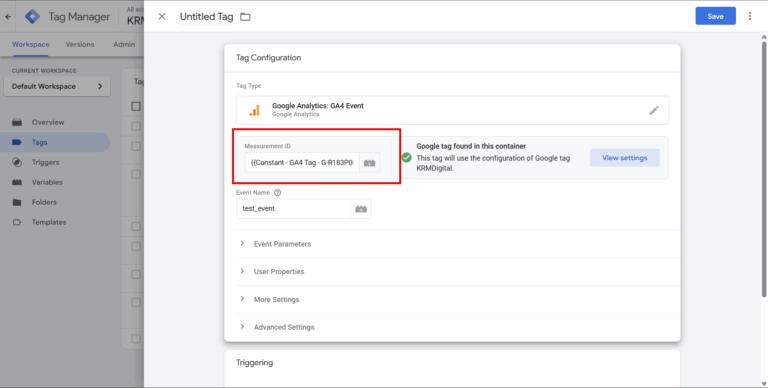
You could simply paste your measurement ID straight into the empty tag field. However, a smarter trick is to turn that ID into a reusable variable:
By setting this up as a constant, you will never have to dig back into your analytics settings to find the tracking code whenever you build a new custom event tag in the future. It is right there waiting for you.
Scroll down to the Triggering options.
By default, the system will look to fire this tag on Initialization – All Pages or Initialization – Pages.
Leave this exactly as it is.
It is highly beneficial for your core analytics tag to fire as early as possible during the page load cycle so you do not miss hasty visitors who bounce quickly (or other events firing quickly too).
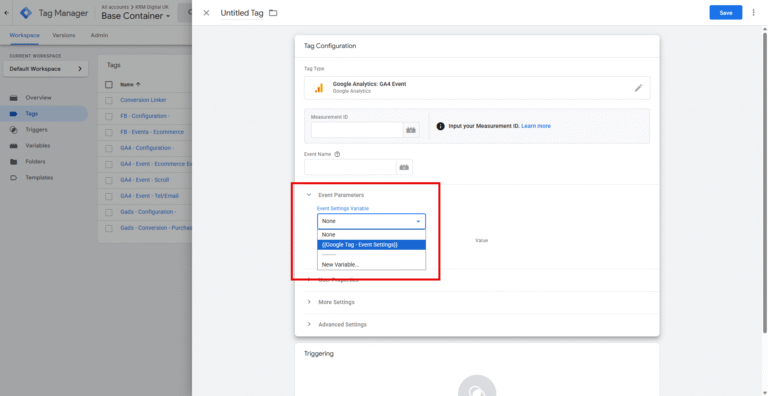
Before saving, look at the Shared event settings section.
This feature allows you to set default variables that automatically attach themselves to every single analytics event sent by the tag.
A highly effective practice when starting out is to add a row for your container_id using the built-in system variable.
Why bother doing this? It makes troubleshooting incredibly straightforward.
If you are debugging your data later on and spot an event missing that specific container ID parameter, you instantly know that piece of data is leaking from somewhere else on the site and isn’t originating from your tag manager.
You can also use this area later down the line to standardise your content groups across the entire domain.
To wrap things up, name your tag using a clean, standardised format like GA4-configuration, hit save, and then click Publish in the top right corner of your dashboard to make the changes live on your website.
Can I find my measurement ID if I have multiple data streams?
Yes. When you visit the Data streams menu within your admin settings, you will see a list of all active streams for that property. Simply click on the specific web stream you are currently configuring to view its unique G-dash code.
Should I change my configuration trigger from Initialization to All Pages?
There is generally no need to change it. Initialization ensures that the tracking script loads at the earliest possible moment during the browser session, which helps capture precise page view data.
What is the difference between a Google tag and a GA4 event tag?
The Google tag acts as the foundational base layer that connects your website to your analytics property. The GA4 event tag is a secondary element used to track distinct, isolated interactions, such as button clicks, file downloads, or video plays, after that primary foundation is established.

Fix messy channel data with GA4’s new Source Grouping dimension. Learn more here.

Learn how to set up the new web host name filter to block staging and spam traffic today.

Learn how to set up the new web host name filter to block staging and spam traffic today.

Learn how to consolidate multiple domains into a single Google Tag Manager container and save hours of administrative work.
Author
Hello, I'm Kyle Rushton McGregor!
I’m an experienced GA4 Specialist with a demonstrated history of working with Google Tag Manager and Looker Studio. I’m an international speaker who has trained 1000s of people on all things analytics.