Traffic Acquisition Reports in GA4
Learn to use the Traffic Acquisition report in GA4 to track sessions, revenue, and key events accurately.
Harnessing Google Ads within GA4 is a great way to have visibility of your Google Ads, along with other traffic and reporting metrics.
But Google haven’t made it easy to find the information that you need!
So if you want to go beyond the typical cross network or paid search in reports, you’ll have to find a way to add Google ads data in GA4
This guide will run through how to link Google Ads, where to find the data and how to build specific reporting.
You can link Google Ads to GA4. As well as seeing data within GA4, it also means that you can:
And then you’re good to go! Huzzah!
Be careful, when you enables ads personalisation, for some reason the following events are marked as key events in GA4:
Now that you’ve linked your Google Ads and GA4, you’d think that there would now be a report magically appearing in your reports.
Well, it’s not that easy – it’s there, but it’s like the Where’s Wally of Analytics.
Let’s get that magnifying glass out.
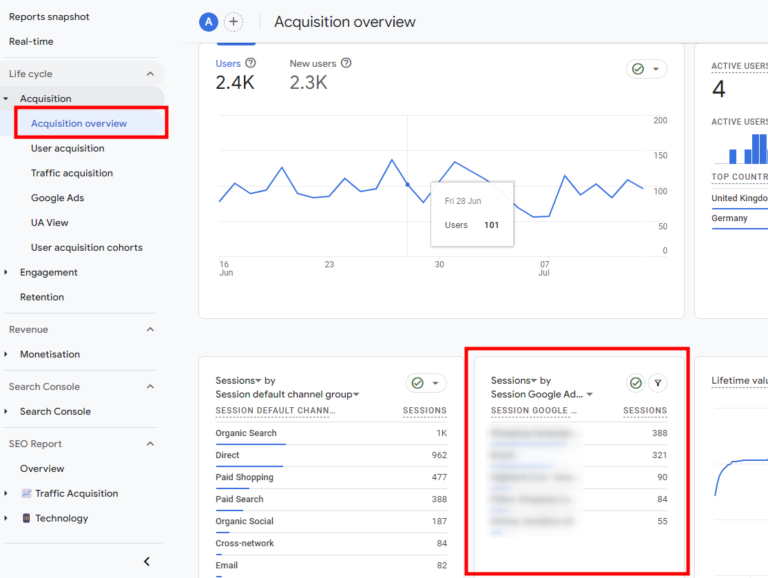
If you click on ‘acquisition’ and then ‘acquisition overview’ in the report section, you should be able to see a report that says ‘Sessions’ by ‘Session Google Ads’
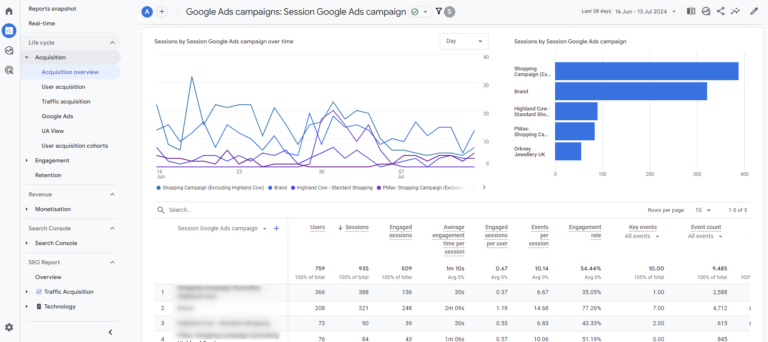
You can then click on ‘View Google Ads campaigns’. This will open up your Google Ads reports in the standard cross tab format. Great news!
Great job in finding the report – now you should really save it so it’s accessible in the report section IMHO.
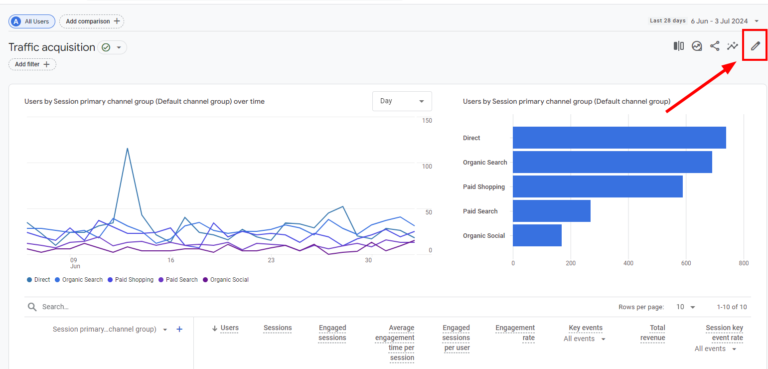
If you’ve got the report up, and have the right level of access you should be able to click the ‘customise report’ button in the top right.
From there, clicking on ‘save’ and ‘save as new report’.
This means you can now adding it to your collections.
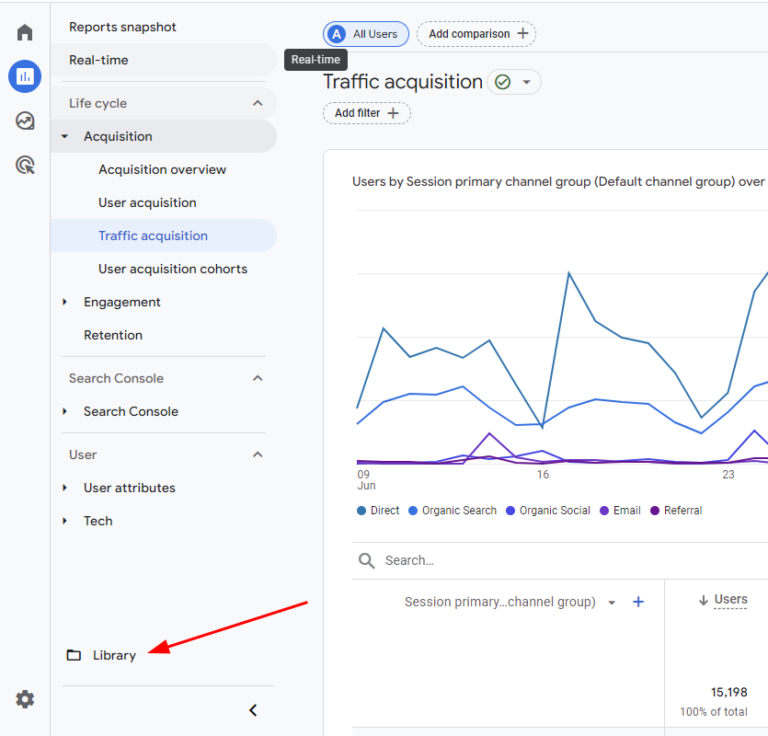
Once back in the report section, click on the library button at the button.
If you then select the collection of choice you can then drag and drop the Google Ads report to it when customising.
Click save and hey presto – you now have Google Ads in the reporting section!
Of course, if you want to, just like building an SEO report in GA4, you can customise a collection to build a Google Ads report.
To add to this you can view Google Ads data in Advertising > Planning > Google Ads
The Google ads in the report section has it’s benefits, not least, the ease of the view, but the explorations section is another great way to view your Google Ads data in a more granular view.
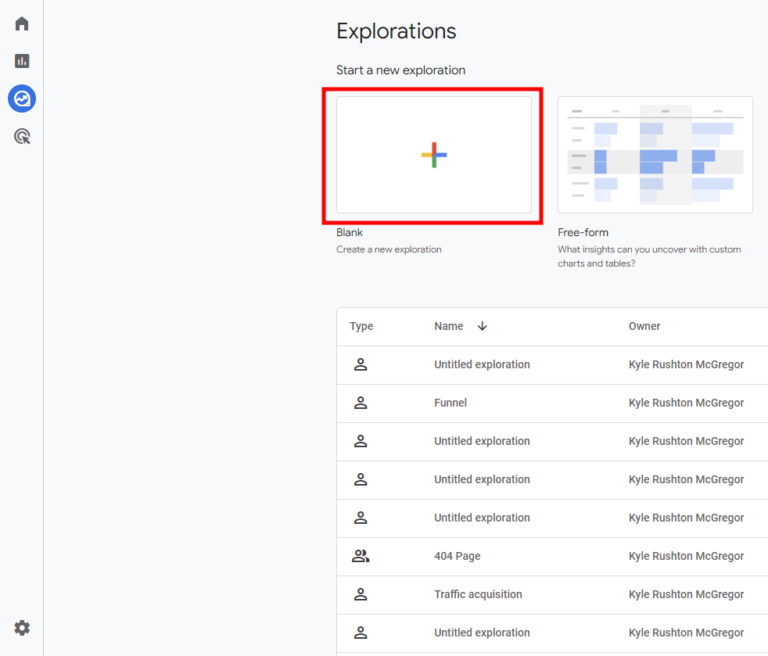
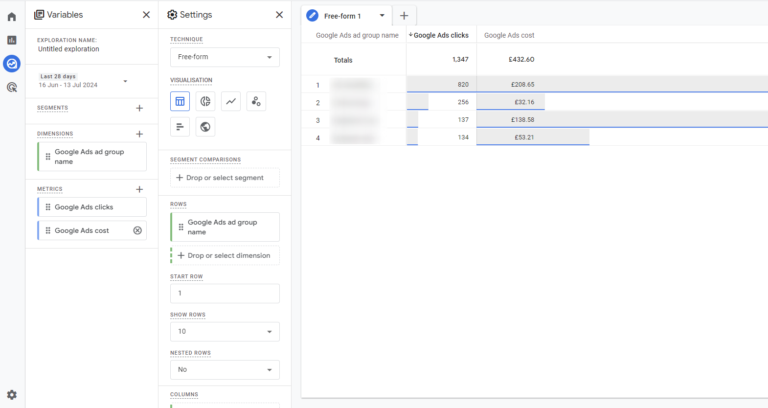
Head to the explore section and click the free form button.
From here, you can start to build out your Google Ads exploration.
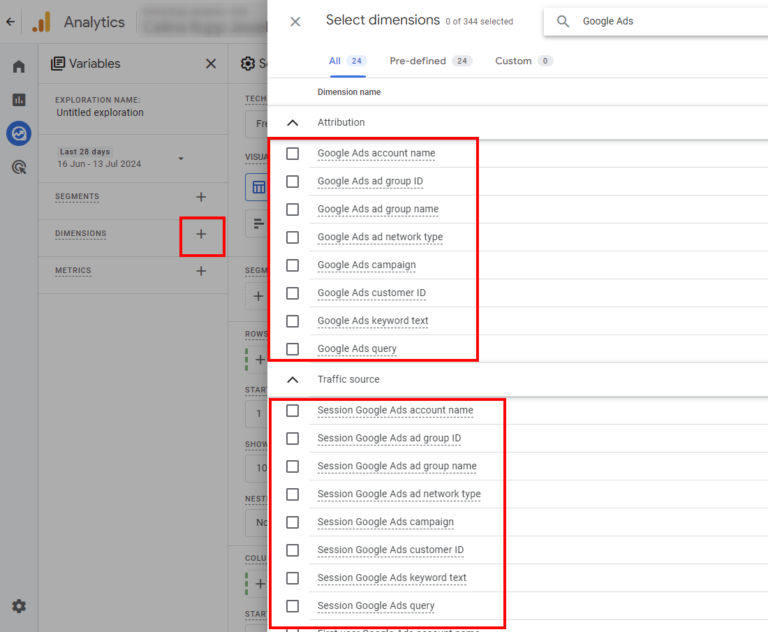
If you click on the dimensions + button you’ll be presented with the dimensions selector.
Typing Google Ads into the search function presents the Google Ads dimensions available
Selecting the dimensions you want to use and clicking ‘Import’ brings it into play in the exploration.
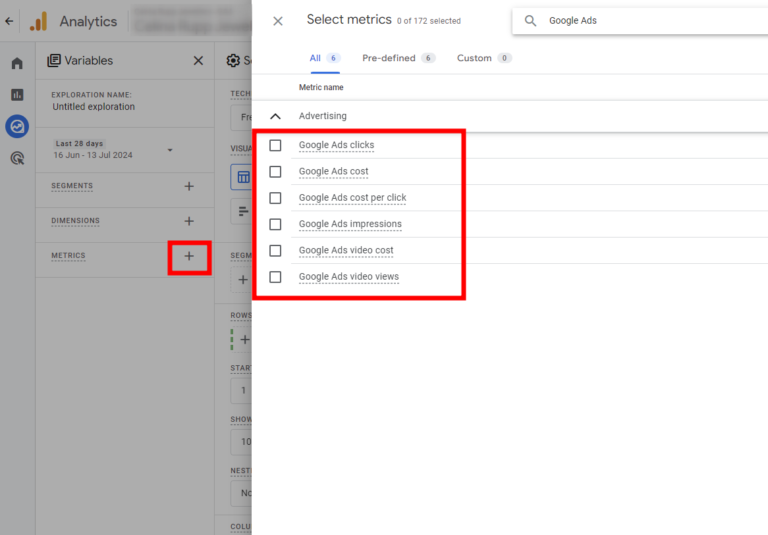
Clicking the + button next to the metrics option means you can now choose the metrics to display. To make things simpler, searching for Google Ads will choose the relevant metrics.
Happy with the dimensions and metrics that you’ve chosen?
Now you’ve got to add them to the visualisation.
And that’s simple enough! If you double click on each metric and dimension that you want to add.
Congratulations! You’ve built your Google Ads report in GA4. And although it’s not so clear to begin with, with a few clicks you’ll be able to visualise the data you need.
One of the most common questions I get is: “Why does Google Ads show 100 clicks, but GA4 only shows 80 sessions?”
It is important to remember that Google Ads and Google Analytics 4 are tracking two different metrics.
Discrepancies are normal, but if the variance is higher than 10-15%, you likely have a configuration issue.
Here are the four main reasons your numbers won’t match:
1. Clicks vs. Sessions
These are fundamentally different metrics.
Google Ads tracks Clicks: This records every time a user hits your ad.
GA4 tracks Sessions: This records a user interacting with your site.
Example: If a user clicks your ad, closes the browser immediately before the page loads, and then clicks the ad again 5 minutes later, Google Ads counts 2 Clicks. However, because the site never fully loaded the first time, GA4 might only record 1 Session.
2. Cookie Consent and Privacy (Consent Mode)
In the UK and Europe, cookie consent banners play a massive role in reporting. If a user clicks your ad but declines analytics cookies on your banner, Google Ads will still charge you for the click, but GA4 (by default) will not report the session associated with that user.
3. Auto-Tagging and GCLID Issues
For data to flow correctly, “Auto-tagging” must be enabled in your Google Ads account settings. This appends a unique “Google Click ID” (GCLID) to your URL.
The Issue: Some website redirects strip this GCLID parameter from the URL before the page loads.
The Fix: Check your landing pages. If you click an ad and the ?gclid=… string disappears from the address bar instantly, your analytics cannot attribute that session to Google Ads.
4. Latency (Data Delays)
Google Ads data is usually faster than GA4 data. It can take 24 to 48 hours for Google Ads cost and click data to fully settle inside your GA4 reports. Avoid trying to reconcile data from “Today” or “Yesterday” always look at a date range ending at least 48 hours ago.
Expert Tip: If you see “Direct” traffic spiking in GA4 while your Google Ads traffic looks low, it usually means your GCLID is breaking or your UTM parameters are not set up correctly. The traffic is arriving, but GA4 doesn’t know it came from an Ad.

Linking Google Ads to GA4 is only the first step.
The real power lies in how you analyse the data to improve your ROAS (Return on Ad Spend). By bridging the gap between your ad spend and user behaviour on-site, you can verify which campaigns are actually driving valuable Key Events versus those that are simply burning budget.
Remember, data discrepancies are part of the analytics landscape, especially with privacy regulations in the UK and Europe.
However, with the correct setup—ensuring auto-tagging is active and your consent mode is configured—you can trust the trends you see in your reports.
Frequently Asked Questions (FAQ)
Place this right before the Conclusion. This section is specifically designed to capture “People Also Ask” snippets in Google Search.
How long does it take for Google Ads data to appear in GA4?
It is not immediate. Once you have linked the accounts, it can take between 24 to 48 hours for data (such as clicks, costs, and impressions) to populate in your Google Analytics 4 reports. If you have just completed the setup, check back in two days.
Why can’t I see the option to link Google Ads in GA4?
This is almost always a permissions issue. To successfully link the accounts, you need the following access levels:
Google Analytics 4: Editor or Administrator role.
Google Ads: Administrator access. If you only have “Standard” access in Google Ads, the link option may not appear or will fail during the process.
Can I import GA4 audiences into Google Ads?
Yes, and this is one of the main benefits of linking. Once connected, you can build audiences in GA4 (e.g., “Cart Abandoners” or “Purchasers”) and share them with Google Ads. This allows you to run highly targeted remarketing campaigns based on specific website behaviour.
Will linking Google Ads to GA4 affect my historic data?
No. The link will only begin sharing data from the moment the connection is established. It cannot retroactively pull ad cost or click data from previous months into your GA4 property.

Learn to use the Traffic Acquisition report in GA4 to track sessions, revenue, and key events accurately.

Learn how to use GTM Base Containers to standardise tracking, improve efficiency, and delight your clients.

Ever noticed different numbers in GA4 Reports vs Explorations? Learn the 6 technical reasons why discrepancies happen

Learn how GA4 User Stickiness measures habit formation and retention
Author
Hello, I'm Kyle Rushton McGregor!
I empower digital marketers and organisations master their data better to drive actions that make a difference through expert GA4 training, audits and insights