
Enhanced Measurement in GA4
April 13, 2026
- First Published: April 13, 2026
- Last Modified: April 28, 2026
You need data to make confident marketing decisions, but you do not always have the time or the developer resources to set up complex tracking.
Waiting on a busy development team to add a simple click tracker can cause serious delays to your campaign reporting.
This is exactly where Google Analytics 4 provides a massive advantage.
Enhanced Measurement automatically tracks several common user interactions without requiring any code changes.
It sounds like a perfect solution. However, while some of these automated events are brilliant time-savers, others can actually pollute your reports with inaccurate data.
We need to look at exactly which features you should rely on and which ones you should turn off immediately.
Table of Contents
Key Takeaways
-
Enhanced Measurement allows you to track specific events without writing code or relying on a developer.
-
File downloads, outbound link clicks, and site search tracking work exceptionally well right out of the box.
-
Scroll tracking and video engagement have significant limitations and usually require custom setups for meaningful data.
-
The default form tracking feature is highly unreliable. You are better off disabling it and using an alternative tracking method.
Enhanced Measurement – how does it work?
Enhanced Measurement sends specific snippets of information to your analytics property automatically. They are ready made events which you can analyse.
Once you flip the switch in your GA4 admin settings, the platform starts populating your reports with valuable user behaviour data.
For a busy digital agency or an in-house marketing manager, this is incredibly helpful.
The data is just there, ready for you to use in a free-form exploration report or your report interface.
This is important to know – and it’s one I emphasis a lot in my GA4 training. You don’t need to go to a developer or tracking expert to set up some events. Sometimes this is already available you just have to find it.
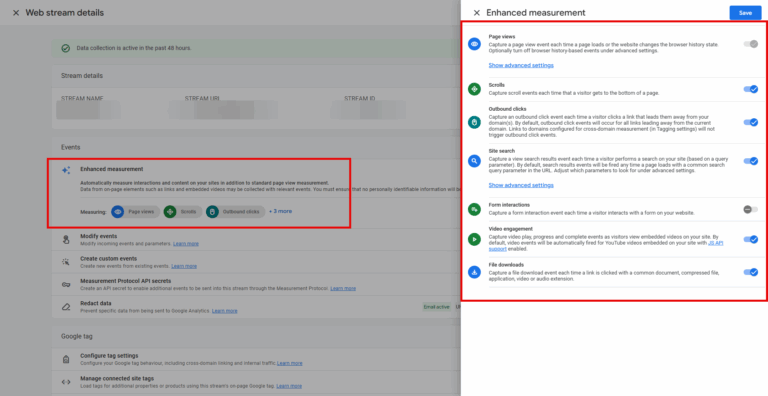
You can switch on and off enhanced measurements in the Data Stream section of the admin panel (all except page view event)
The Ones I trust
When auditing accounts or setting up new properties, there are three features I always recommend keeping active.
They are dependable and give you instant visibility into how users interact with your content.
1. File Downloads
If your content strategy relies on whitepapers, case studies, or technical brochures, this feature is excellent.
It automatically sends a file_download event whenever a user clicks a link that ends in a common file extension like a PDF or a document.
To be perfectly clear, file extensions that match the following regex will trigger the file_download event:
pdf|xlsx?|docx?|txt|rtf|csv|exe|key|pp(s|t|tx)|
7z|pkg|rar|gz|zip|avi|mov|mp4|mpe?g|wmv|midi?|mp3|wav|wma
Parameters
It also pulls in useful parameters like the file name and the link URL, so you know exactly which assets are performing best.
The following dimensions are populated with this event:
The parameters populate the following dimensions:
- File extension (from file_extension)
- File name (from file_name)
- Link classes (from link_classes)
- Link ID (from link_id)
- Link text (from link_text)
- Link URL (from link_url)
2. Outbound Clicks
You often need to know when users leave your site, perhaps to visit a partner portal or an external booking system.
This feature fires whenever someone clicks a link leading away from your current domain.
There are a few caveats to remember.
It will not track clicks on mailto: email links or tel: phone number links. You will need to set up this tracking via a different approach.
Additionally, if you have cross-domain tracking configured, clicks to those connected domains will not trigger an outbound click event.
Parameters
The parameters populates these dimensions:
- Link classes (from link_classes)
- Link domain (from link_domain)
- Link ID (from link_id)
- Link URL (from link_url)
- Outbound (from outbound)
3. Site Search
Understanding what users actively search for on your site gives you direct insight into their intent.
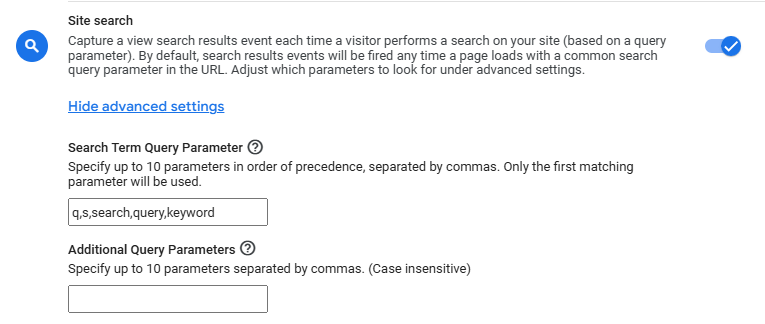
By default, this feature looks for common query parameters in your URLs, such as
- q,
- s,
- search,
- query, and
- keyword.
And will send an event called view_search_results along with a paramenter called Search Term.
If your site uses a different parameter, you can easily configure the settings to recognise it.
If a URL sends additional information with the search terms e.g. search place (where the search took place). Such as www.test.com/?q=test_search&search_place=services
Then you can configure that too.
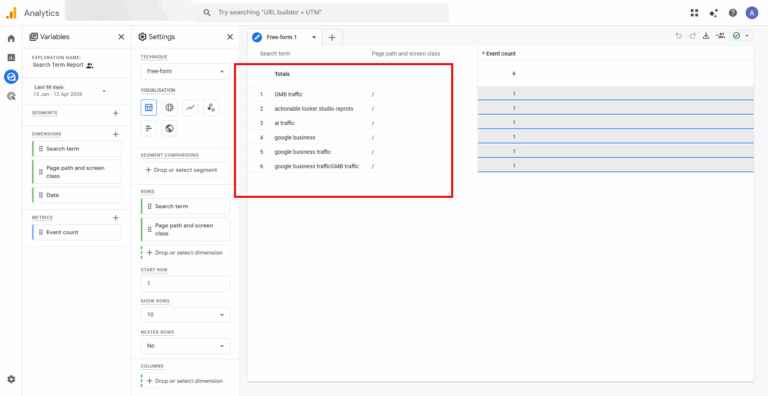
This is really useful to track what people are searching for on your site. In fact, I used this exact enhanced measurement to discover someone was searching for Google Business Profile tracking – and I wrote a blog about it.
This is really useful to track what people are searching for on your site. In fact, I used this exact enhanced measurement to discover someone was searching for Google Business Profile tracking – and I wrote a blog about it.
The Features That Need Custom Work
This is where we need to be careful.
Some automated events look great on paper but fail to provide the granularity required for proper marketing analysis.
Scroll Tracking
The default scroll tracking only fires when a user reaches 90% vertical depth on a page.
While knowing someone reached the very bottom of an article is nice, it does not tell you much about the people who dropped off halfway through.
If you want to see exactly where you are losing readers, switch this off.
You are much better off setting up custom tracking to measure 25%, 50%, and 75% scroll depths.
Video Engagement
This feature tracks when a video starts, the progress, and when it completes.
The problem? It only works for embedded YouTube videos that have the JS API support enabled.
If you use Vimeo, Wistia, or upload standard HTML5 videos directly to your CMS, this feature will capture absolutely nothing.
If video is a core part of your strategy, build a custom solution instead.
Julius Feorovicius has a great solution and approach to this.
The Feature You Should Probably Disable
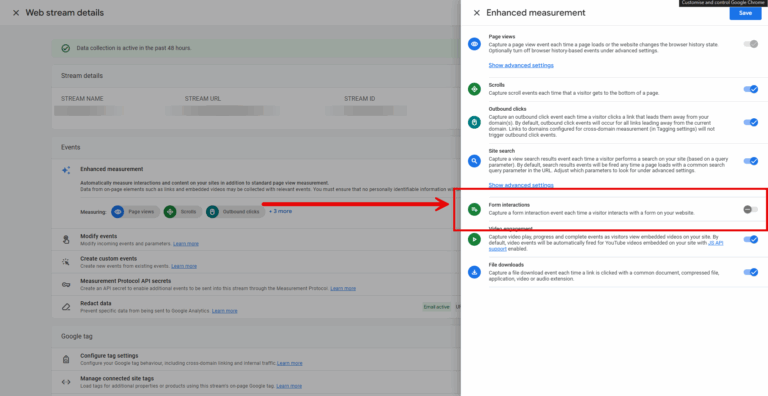
If there is one setting that consistently causes headaches, it is the Form Interactions feature.
In my own campaigns, I have seen that relying purely on default form tracking leads to highly skewed conversion numbers.
It attempts to track when a user starts filling out a form and when they submit it.
However, the data is notoriously patchy.
Crucially, it cannot track AJAX forms reliably. Worse still, it might fire a successful submit event even if the form submission actually failed due to a validation error.
If you are reporting on lead generation to stakeholders, you cannot afford to have inflated, incorrect data.
Switch this off and use a more robust tag configuration.
Summary
GA4’s automated tracking is a fantastic tool for busy marketers, provided you know exactly what it can and cannot do.
Keep file downloads, outbound links, and site search active to save yourself hours of configuration time.
However, take the time to build bespoke solutions for scroll depth, video engagement, and form submissions to ensure your reporting remains accurate and trustworthy.
Frequently Asked Questions
Does GA4 Enhanced Measurement require coding?
No. It is designed to track common site interactions automatically without requiring any input from a web developer or changes to your website’s codebase.
Why is my GA4 not tracking video views?
The automated video engagement feature only works for embedded YouTube videos that have JS API support explicitly enabled. It will not track Vimeo, native HTML5 videos, or other third-party players.
Should I use GA4’s default form tracking?
It is generally recommended to turn off default form tracking. It can be unreliable, particularly with AJAX forms, and frequently records failed form submissions as successful conversions.
.

How to Add Meta Pixel in GTM
Learn how to implement the Meta Pixel in Google Tag Manager using the Stape template.

Understanding GA4 Events
Learn the four distinct types of GA4 events and how to set them up

Event Settings Variable GTM
Use the event settings variable in Google Tag Manager to speed up your event build and reduce errors.

Author
Hello, I'm Kyle Rushton McGregor!
I’m an experienced GA4 Specialist with a demonstrated history of working with Google Tag Manager and Looker Studio. I’m an international speaker who has trained 1000s of people on all things analytics.