Setup GA4 via Google Tag Manager
Learn how to configure Google Analytics 4 using Google Tag Manager with our clean, step-by-step implementation guide.
Every single interaction is categorised as an event.
However, they are not all created equal.
Understanding the four distinct types of events is the absolute foundation of reliable data collection.
Once you know how they function, you can confidently configure the most critical ones into ‘key events’ (the interactions that actually drive your business forward) and measure your success accurately.
Any essential event can be marked as a ‘key event’ to track your primary business goals.
Data collection relies entirely on events. Whether a user views a page, clicks a button, or submits a lead generation form, an event fires.
Google segments these into four distinct categories based on how they are tracked and implemented. A good rule of thumb is to work through these categories in order. Always check if an action is tracked by default before you spend time building bespoke tags.
These events fire by default whenever the tracking code loads on your site.
They provide the baseline user interactions and system data without requiring any manual configuration from your team.
Examples include page_view, session_start, and first_visit.
The Expert View: Do not amend these. Leave your automatically collected events exactly as they are to ensure your baseline engagement metrics remain accurate and consistent.
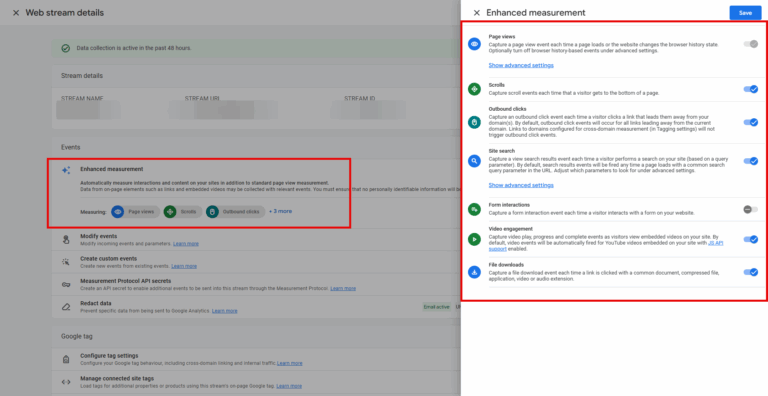
Enhanced measurement covers common user interactions that you can simply switch on or off directly within the admin panel.
They save you from having to code individual tags for basic activities like file downloads or clicks to an external website.
Many clients ask for complex setups for outbound clicks or basic downloads, but these are often already available via a simple toggle.
However, there is a catch. In my own campaigns, I have seen some of these automated options misfire.
There are two events I tend to switch off and configure in a different way:
Form start and form submit can fire in weird scenarios, and sometimes they do not fire at all.
For a more robust setup, switch off the default scroll and form tracking.
Instead, configure them manually using Google Tag Manager (GTM).
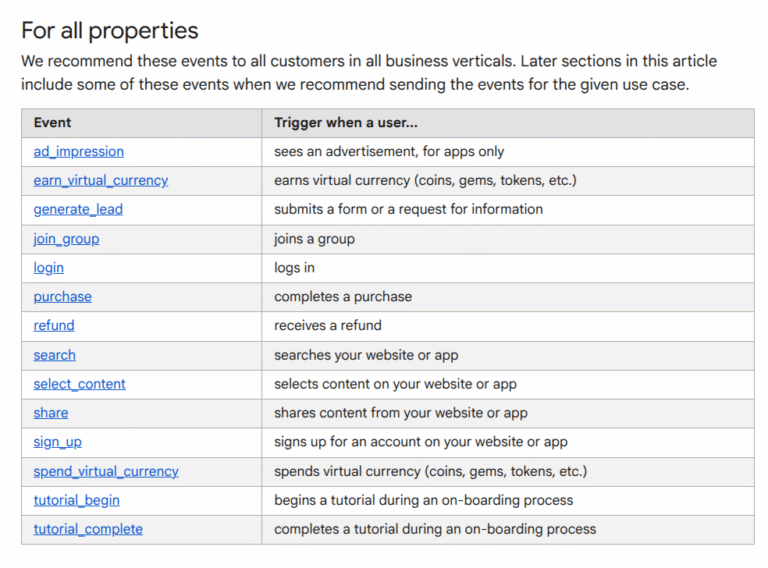
Recommended events are predefined by Google for specific industries, such as e-commerce or SaaS.
While they are not created automatically, applying Google’s exact naming conventions opens up deeper, specialised reporting.
If you run an e-commerce site, you will use events like:
If you are a SaaS provider, you should focus on events like generate_lead, sign_up, or login.
Using these specific names populates other standard dimensions and metrics. This gives you much more valuable data in your dashboards without requiring a completely bespoke setup.
When an interaction is not covered by the first three categories, you build a custom event.
You can create these using specific naming conventions and parameters via GTM or hardcoding.
For instance, a charity might need a specific donate event, or a B2B agency might want a highly specific newsletter_subscription tag.
The most important thing to remember here is keeping your setup clean.
I strongly advise against creating additional custom events if the interaction is already covered by an enhanced or recommended option.
Keeping your account decluttered makes analysis much easier for everyone on your team.
To build great insights, you need to know which event type to use.
When you need to track a new interaction, run through this simple checklist:
Following this framework ensures your reporting remains clean, accurate, and ready for analysis.
What is a key event in GA4?
A key event is a specific interaction you have identified as critical to your business. You can toggle any standard or custom event to become a ‘key event’ (previously known as a goal or conversion) to measure campaign success.
Why should I use Google Tag Manager for form tracking instead of GA4 enhanced measurement?
The default form tracking in enhanced measurement can occasionally misfire or trigger inaccurately depending on how your website is built. Using GTM allows you to define the exact parameters of a successful form submission, ensuring your data is completely reliable.
Do I need a developer to set up recommended events?
It depends on your website platform. Many modern CMS and e-commerce platforms push recommended events directly to the data layer natively. However, for completely bespoke websites, you may need developer support or a confident GTM specialist to ensure the data parameters are passed correctly.

Learn how to configure Google Analytics 4 using Google Tag Manager with our clean, step-by-step implementation guide.

Learn how to consolidate multiple domains into a single Google Tag Manager container and save hours of administrative work.


Learn how to implement the Meta Pixel in Google Tag Manager using the Stape template.
Author
Hello, I'm Kyle Rushton McGregor!
I’m an experienced GA4 Specialist with a demonstrated history of working with Google Tag Manager and Looker Studio. I’m an international speaker who has trained 1000s of people on all things analytics.