Link Google Business Profile to GA4

June 26, 2026

There is now a really neat new function in GA4. You now have the ability to link Google Business Profile to GA4.

Connecting your local listing data to Google Analytics 4 gives you a clearer view of how offline or map-based searches drive online action.

Let’s dig into the how, why and wherefors.

Table of Contents

Key Takeaways

  • Centralise Your Data: View local profile clicks, calls, and direction requests alongside website metrics.
  • Multi-Profile Views: Review performance across multiple locations, though data remains aggregated rather than split by individual address.
  • Six-Month Window: Access a rolling six-month window of local interaction data directly inside your reports.
  • Smart Workarounds: Use custom UTM tracking codes to build reports that bypass the limitations of aggregated multi-location data.

What Permissions Do You Need First?

Before you click anything, make sure you have the right access levels.

You will need to check your settings in both accounts to ensure the integration goes smoothly.

For the GA4 Property: You must hold either Editor or Administrator access.

For the Google Business Profiles: You need to be an Owner or Manager of the listings you want to connect.

Without these specific roles, the option to link the accounts will be greyed out.

If you are managing this for a client, you will need to ask them to update your user permissions before proceeding.

And if they refuse, then you’re all out of luck!

Linking the Accounts?

The actual connection process only takes a couple of minutes. Follow these steps within your analytics dashboard:

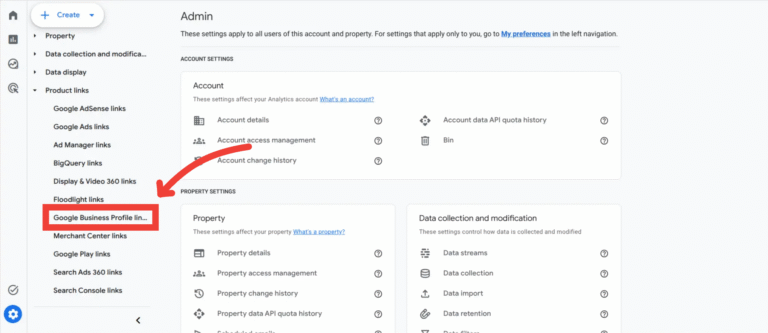
  1. Click on the Admin gear icon in the bottom left corner of the GA4 interface.
  2. Look down the menu for Product Links and select Google Business Profile links.


adding gbp in admin section
  1. Click the blue Link button in the top right corner.
  2. Choose the specific local business profile listings you want to connect and click Confirm.
  3. Click Next, review your choices, and click Submit.

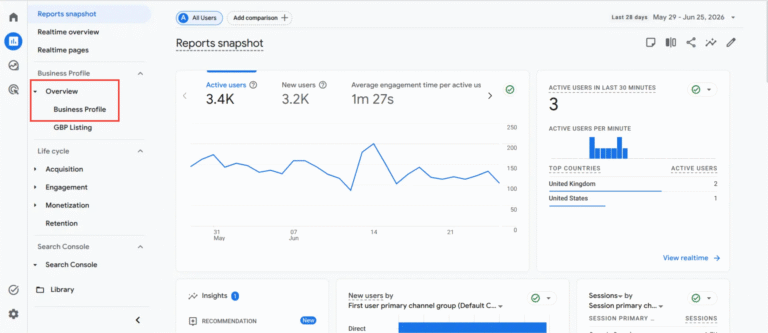
Once completed, your local performance data will start appearing inside your dashboard within a dedicated collection.

GBP data in report section

What metrics are available?

What data actually drops into your dashboard?

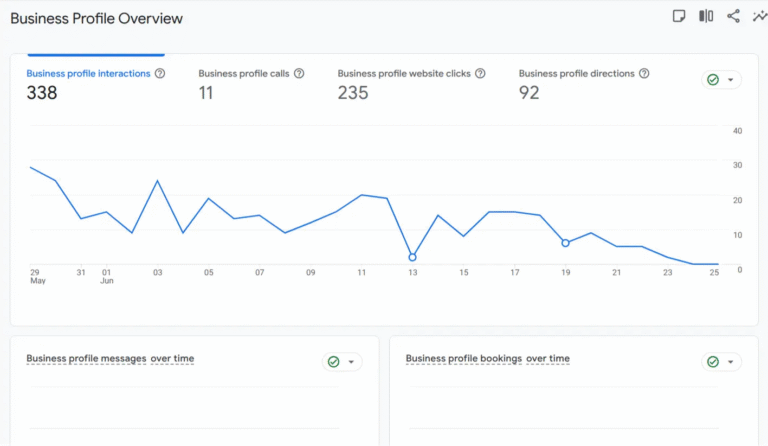
GA4 pulls in a combined total of your local engagement, meaning you can track these specific metrics all in one place:

  1. Interactions: The total volume of engagements with your listing.
  2. Website clicks: How many users clicked through to your site from the profile.
  3. Calls: Direct phone inquiries triggered by your listing.
  4. Directions: Requests for maps and directions to your location.
  5. Messages: Customer chats and direct texts sent via the profile.
  6. Bookings: Appointments or reservations scheduled directly through the listing.
  7. Menus: Views and clicks on your listed products, food menus, or service links.
metrics in ga4

The Catch: Understanding the Limitations

While this feature is a time-saver for client and internal reporting, it does come with a few strict boundaries that you need to plan around.

  • Aggregated Data Only: If you link multiple profiles, your reports show the combined sum of all data. You cannot filter or segment by an individual shop or office using the standard link data.
  • Six-Month Window: Your dashboard will only display local performance data for the last six months. Reports will only display data within this timeframe, so you will need to export data regularly if you want to perform year-on-year comparisons.
  • No Data Controls: There are no built-in toggles to select which specific data points are shared; it is an all-or-nothing data feed.
  • Delayed Updates: If you change an address or business detail in your local profile, expect a short delay before that change updates in your analytics console.

So I think the most frustrating thing is you can’t split out multiple different properties.

If you manage multiple locations, you can’t see perhaps which one is driving the most traffic, clicks, that kind of thing. So that’s a drawback of this new feature.”

Pro-Tip: Adding to this report

If you manage multiple locations for a brand or an agency, the aggregation issue can feel like a dealbreaker.

But there is a smart workaround.

By using custom report features and clever UTM tagging, you can isolate your local traffic. This is simply a good approach to ensuring you see GBP data as separated out and not as potentially Direct traffic too!

First, make sure every link on your local profiles (like the ‘Website’ button) includes unique UTM parameters. For example, you could use:
?utm_source=google&utm_medium=organic&utm_campaign=london-branch

Next, you can set up a custom report within GA4 to filter this specific traffic:

  1. Go to the Reports section and open the Library (you will need admin/editor rights for this).
  2. Create a new custom detail report or customise an existing traffic acquisition report.
  3. Apply a filter to only show traffic where the source and medium match your exact local UTM parameters.
  4. Save this report to your collections.

This allows you to build a dedicated local performance dashboard that actually differentiates between your locations, or even compares them against other platforms like Bing Maps for Business.

You could even do this if you have just one branch and want to see how different aspects of your profile is impacting clicks and key events etc.

Worth a shout to build out.

Summary

Centralising your local SEO data is an excellent step toward proving the value of your marketing efforts.

Even with the current reporting constraints around multi-location businesses, the ability to see local interactions alongside web conversions gives you a far more complete view of the user path.

Frequently Asked Questions

How do I delete the link if I need to change accounts?

If you ever need to remove the connection, go to Admin, click Google Business Profile links under Product Links, find the connection in the table, click the three dots on the right, and select Delete. The link can only be removed from within the GA4 interface.

Will it show different metrics based on my industry?

No. Google Analytics shows every available local profile metric (such as calls, directions, messages, menus, and bookings) regardless of your business type. If a specific metric does not apply to your business model, it will simply display as zero in your summary cards.

Kyle

Author

Hello, I'm Kyle Rushton McGregor!

I’m an experienced GA4 Specialist with a demonstrated history of working with Google Tag Manager and Looker Studio. I’m an international speaker who has trained 1000s of people on all things analytics.

Scroll to Top