Lookup Tables in GTM

March 15, 2026

Managing multiple tracking scripts across different subdomains can quickly become a massive headache.

 If you are running various brands or dealing with slightly different site architectures, you might feel tempted to create separate Google Tag Manager containers for each one.

It’s something I see in multiple clients, where a cluttered GTM causes mistakes. And that approach usually leads to double the work and a much higher risk of tracking errors. 

There is a much smarter, cleaner way to handle this complexity. 

Enter the GTM lookup table.

Table of Contents

Key Takeaways

  • Lookup tables automatically change an input variable into a specific, predefined output.
  • They drastically reduce the number of tags you need to manage within your container.
  • You can instantly correct inconsistent developer naming conventions without touching the website source code.

What Is A Lookup Table?

At its core, a lookup table is a user-defined variable within Google Tag Manager.

It takes an input variable and evaluates it.

Based on what that input is, the table defines exactly what the final output should look like.

Lookup Table

In my own campaigns, I have seen that consolidating tags using this method reduces debugging time significantly.

You are keeping your setup clean while maintaining a consistent approach for consent and event management across the board.

You simply do not need to recreate the same tags multiple times.

Three Real Scenarios Where Lookup Tables Shine

If you are wondering how this applies to your day-to-day work, here are a few practical examples of where this feature saves the day.

1. Managing Multiple GA4 Properties

Let us say you are managing a complex setup with multiple domains.

You might have example.com, site.example.com, and site.a.com all routing to different Google Analytics 4 accounts.

Instead of building a separate GA4 configuration tag for every single site, you build one.

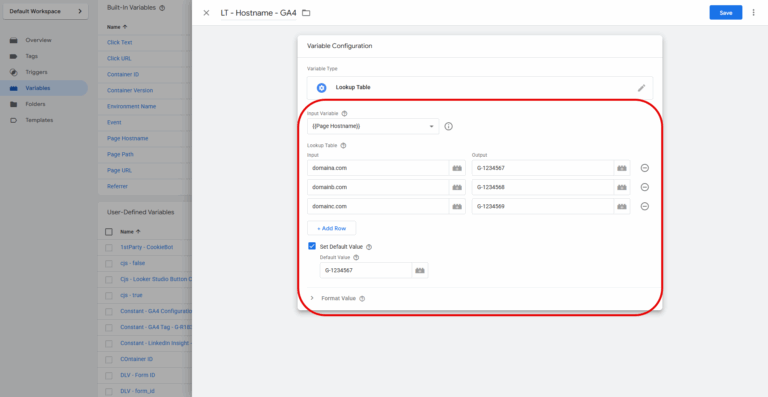
The lookup table uses the hostname as the input and outputs the correct GA4 measurement ID.

You can even set a default value to catch any traffic that falls outside your specified list.

2. Fixing Rogue Developer Code

Sometimes developers go a little bit rogue with their naming conventions.

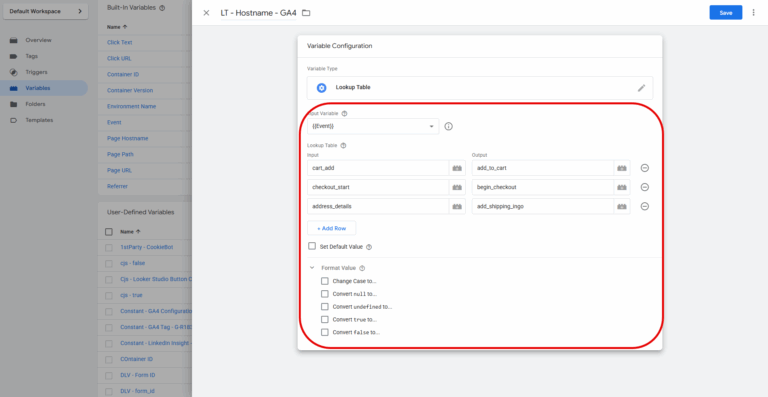
You might be staring at a complex e-commerce setup where the data layer pushes an event called “cart add” instead of the standard “add_to_cart”.

Or perhaps they used “checkout start” instead of “begin_checkout”.

You do not need to wait for a development sprint to fix this.

You can create a GA4 tag and use a lookup table to translate those incorrect terms into the standard Google Analytics events when they trigger.

By the way – this from Adam Gent is a great read on how to build shared understanding between developers and non-developers.

Ecommerce examples in Lookup tables

3. Refining Social Media Tracking

You can also use this feature to group content or refine your outbound clicks.

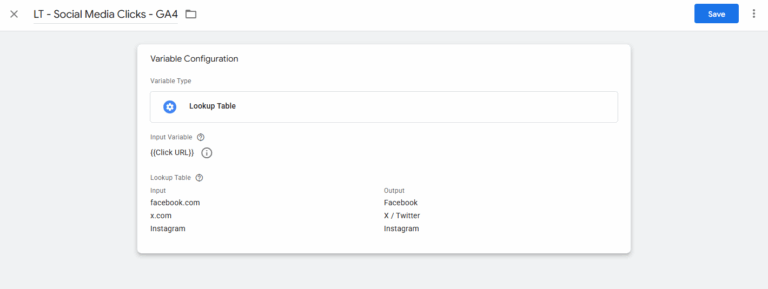
If you are tracking social media engagement, you could set up a rule that says if a click URL contains “Facebook”, the lookup table outputs a refined “social click” event.

This one is perhaps a bit simplified, and a better way to do this might be via a Regex table variable.

Social Media in Look up table

How to build a Lookup Table

Setting this up is highly straightforward.

You do not need to be a coding expert to make it work.

  • Open your Google Tag Manager workspace.
  • Go to the “Variables” section on the left-hand menu.
  • Scroll down to “User-Defined Variables” and click “New”.
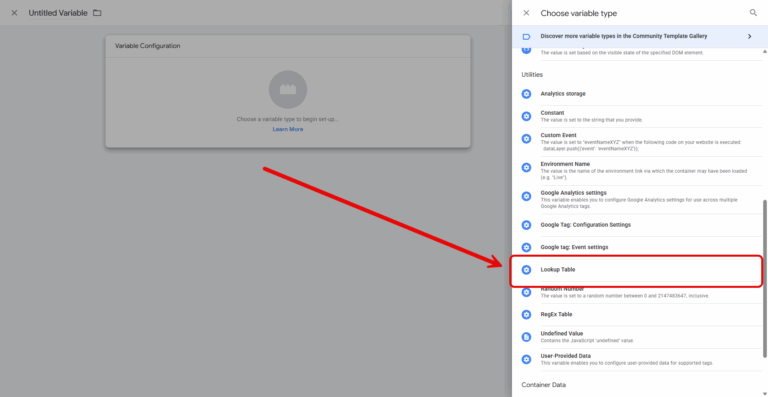
  • Click on the variable configuration box and select “Lookup Table” from the list.

From there, you simply add your rows of inputs and their corresponding outputs.

It is a brilliant way to merge multiple tags into one single, manageable tag. This makes your account look a lot tidier and leaves much less room for critical errors.

Once it’s built you can add it to any place it’s required.

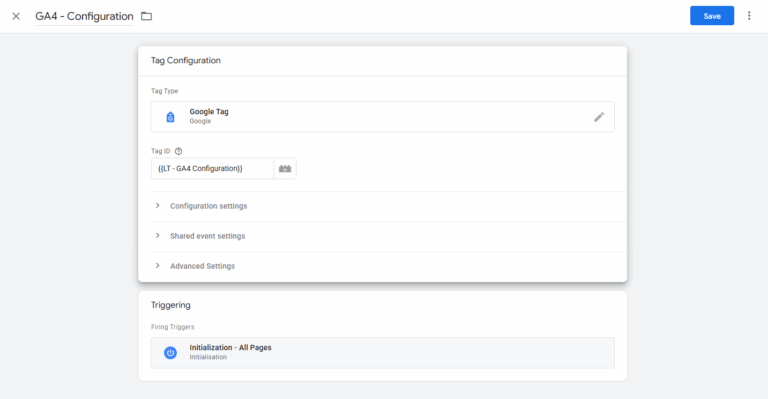
For example, if you’ve added a Lookup table for a GA4 configuration, you can add it as the value for the Tag ID.

Default Value

You can set a default value when there are no matches. It would return undefined otherwise.

Using it with other Variables

You can also the Lookup table with other variables.

One example from working with one of my clients is content groups. Their blog does not sit within a /blog/ subfolder.

So I’ve used a regex table initially but then used a LookUp table in the default value of the regex table to help identify blogs.

Ready To Streamline Your Setup?

Consolidating your tracking with lookup tables is a fundamental step toward building a more scalable analytics strategy.

It saves you time, prevents data fragmentation, and keeps your containers running efficiently.

Frequently Asked Questions

What is a user-defined variable in Google Tag Manager?

It is a custom variable you create within GTM to capture specific data points, such as a clicked URL or a custom e-commerce event, which is not tracked by default.

Can lookup tables fix messy e-commerce data?

Yes. You can use a lookup table to translate non-standard data layer events pushed by your website into the standard event names required by analytics platforms.

Do I need separate GTM containers for subdomains?

Usually, no. You can use a single container across multiple subdomains and rely on lookup tables to route the data to the correct analytics properties based on the active hostname.

Kyle

Author

Hello, I'm Kyle Rushton McGregor!

I’m an experienced GA4 Specialist with a demonstrated history of working with Google Tag Manager and Looker Studio. I’m an international speaker who has trained 1000s of people on all things analytics.

Scroll to Top