
Page Referrer in GA4
Find out exactly where your website traffic is coming from with the page referrer dimension in GA4
One neat thing I’ve been thinking about lately is how to make Google Analytics 4 (GA4) work harder for you.
We all have the standard tracking set up, but the real value lies in those “extra” layers that actually protect your bottom line.
I’ve recently been working with a client to solve a specific headache: being the last to know when a website form breaks.
There is nothing worse than realising a high-value landing page hasn’t produced a lead in three days because of a validation error no one spotted.
The solution?
Sending a Custom Insight alert when GA4 detects an anomaly in form errors.#
Here is how you can set this up to stay ahead of the curve.
Most marketing teams are focused on the “Success” event – the thank you page or the conversion trigger.
But if a form is causing a real pickle, your standard reports might just show a dip in conversions without telling you why.
By tracking when an error message appears, you can gather data to take back to your development or product teams.
Whether it’s a buggy script or a confusing field, you’ll have the evidence to fix it before it drains your ad spend.
Before GA4 can tell you something is wrong, it needs to see the error. You have a few options here:
The goal is simple: get an event into GA4 every time a user hits a snag. I’m sure there are other ways that can be done too!
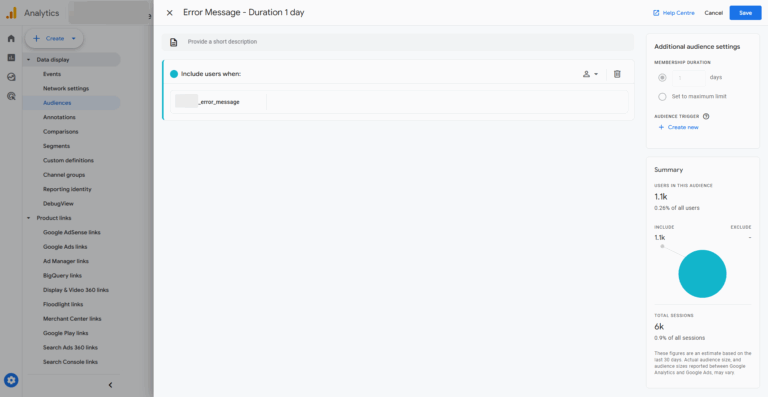
Once your events are flowing into GA4, you need to categorise those users. We do this by creating a specific Audience.
In the GA4 Admin panel, create a new audience with these settings:
Why one day?
Because we want to monitor fresh anomalies.
We are looking for a sudden surge in errors right now, not a rolling 30-day average.
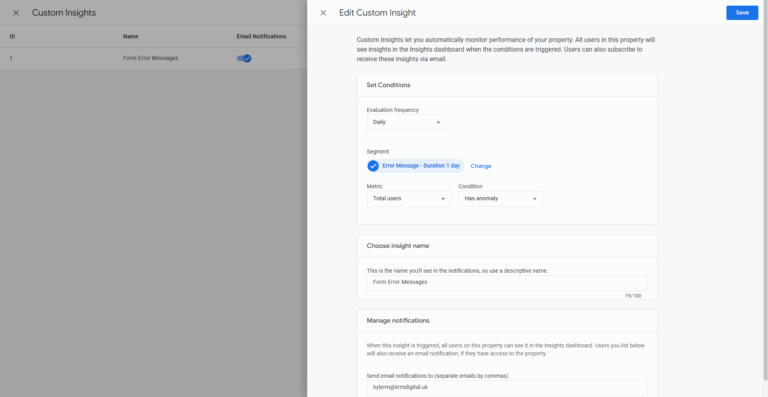
Now for the clever bit. We want GA4 to do the heavy lifting of “watching” the data for us.
Navigate to your Homepage, find the Insights card, and click Manage.
From here, you can create a new custom insight.
The Setup:
By selecting “Has anomaly,” you are asking GA4’s machine learning to look at your historical patterns.
If you usually have 50 errors a day and suddenly you have 500, the system knows that isn’t normal.
You would then set up email notifications for this so that you get the email notifications. If it’s a shared inbox, you could even set it up so that it gets forwarded to a Slack channel.
Once this is live, you can manage your notifications to ensure you (and your team) receive an email the moment that anomaly is detected.
If you’re an agency, imagine the value you provide when you email a client saying, “We noticed a 300% spike in form errors this morning on your lead-gen page; we’ve already flagged it with the devs.” That is how you move from being a “service provider” to a “trusted partner.”
You might be wondering if you can just use a standard “Event Count” threshold instead of an anomaly. You certainly can. You could set a rule that says “Alert me if form_error is greater than 100.”
However, the “Has anomaly” setting is much more sophisticated. It accounts for your natural traffic fluctuations. A spike on a Tuesday might be an error, but a spike on a Black Friday might just be high volume. GA4 is smart enough to tell the difference.
Setting up automated safeguards is one of the best ways to reduce the daily stress of account management.
You can’t watch every report 24/7, so let the platform do it for you.

Find out exactly where your website traffic is coming from with the page referrer dimension in GA4

Learn how to set up Google Tag Manager constants to streamline your GA4 and pixel tracking setups.
Learn how to set up Google Tag Manager constants to streamline your GA4 and pixel tracking setups.

Learn how to set up Google Tag Manager constants to streamline your GA4 and pixel tracking setups.

Author
Hello, I'm Kyle Rushton McGregor!
I’m an experienced GA4 Specialist with a demonstrated history of working with Google Tag Manager and Looker Studio. I’m an international speaker who has trained 1000s of people on all things analytics.