Page Referrer in GA4

April 21, 2026

The page referrer dimension is GA4’s answer to ‘previous page path’ from Universal Analytics.

It shows you the precise web page a visitor was on right before they landed on their current page. It tracks both internal clicks and external traffic sources.

Sound complicated? It is actually quite straightforward once you know where to look.

Let us look at how you can start tracking this data today.

Table of Contents

Key Takeaways

  • The page referrer tells you the exact URL a user visited immediately before their current page.

  • GA4 collects this data automatically, but you need a quick custom dimension setup to view it in your standard reports.

  • You can use this data immediately in GA4 Explorations to map blog traffic flow, trace broken links, and attribute form submissions.

  • A blank referrer row usually indicates direct traffic or a timed-out session.

Page Referrer Dimension

The page referrer is an automatically collected event parameter.

It captures the web page that sends visitors to your site using a link.

So if someone is reading an informational guide on your site and clicks a link to your pricing page, the URL of the informational guide is the referrer.

It tracks movements within your own domain and movements from external websites pointing to yours.

Creating a Custom Dimension

Here is the thing.

Even though GA4 collects this data automatically, it hides it from your standard reports by default.

To see it in your day-to-day reporting, you need to configure it as a custom dimension.

  1. Head to Admin.
  2. Go to Data display and select Custom definitions.
  3. Click Create custom dimension.
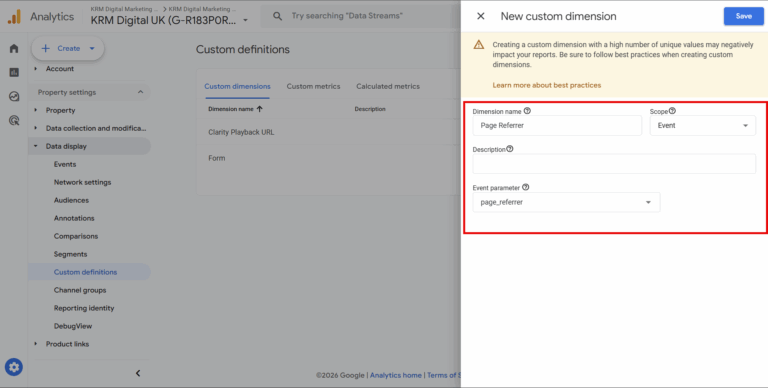
  4. Set the dimension name to “Page Referrer”.
  5. Set the event parameter to “page_referrer”.
  6. Hit save.

That is it.

You can now pull this data into your standard reporting views. But what if you want answers right now?

You can skip the custom dimension process entirely by using Explorations, where page referrer is available natively.

Page Referrer Custom dimension

Page Referrer in Exploration Reports

Knowing how to find the data is one thing.

Knowing what to do with it is another.

You can use Page Referrer as a dimension in the Explore section of GA4. The most common way would be via the Free-From section.

Here are three highly effective ways you can apply this to your own campaigns.

1. Mapping Your Content Flow

Are your top-of-funnel posts actually driving people to your core service pages?

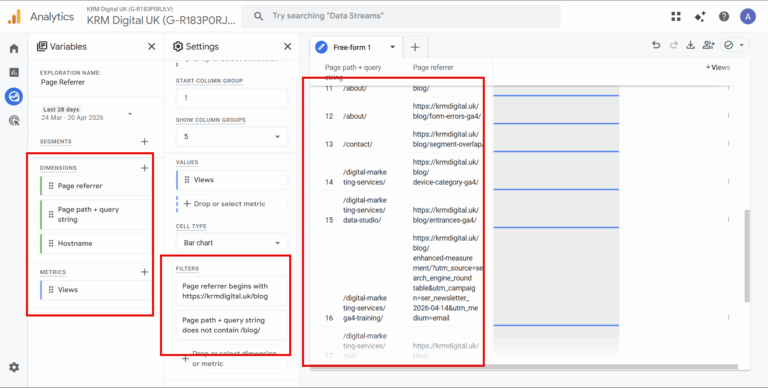
You can build an Exploration report with “Page Referrer”, “Page Path”, and “Views”.

Filter the report so the page referrer begins with your blog subdirectory (like /blog/).

This setup shows you exactly how different pieces of content interact with one another and where your readers go next.

Perhaps you’re checking to see if blogs are actually driving clicks to a service page. You could even create this as an audience for retargeting, getting people who initially visited your site with a query, and saw your solution.

Page referrer to service pages

2. Tracing the Source of 404 Errors

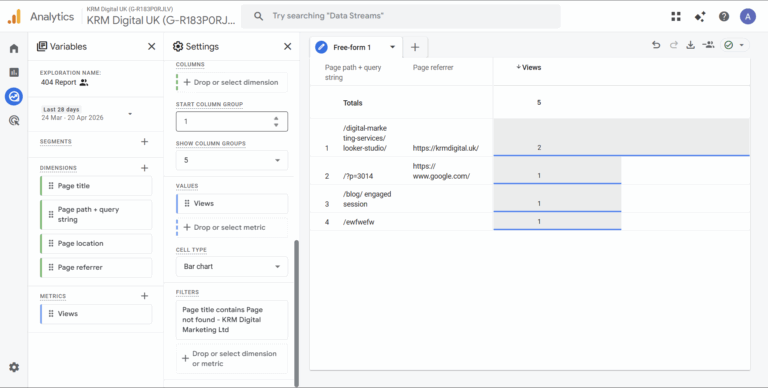
Spotting a 404 error is helpful. Knowing exactly where the broken link lives is infinitely better. Build a report for your 404 pages and add the page referrer dimension. 

You will instantly see if the broken link is coming from an external website or if it is a typo hiding somewhere on your own site.

In this instance, I’m adding Page Title and Page Referrer as dimensions and views as a metric.

But for this – I’m filtering on whether or not the Page Title is a 404 e.g. it says ‘Page Not Found’ (your site might be different).

Broken Pages Referrer

3. Attributing Form Conversions

Say you have a single “Thank You” page that triggers for five different lead forms across your site.

How do you know which specific page drove the lead?

Filter your report for the event name generate_lead and pull in the page referrer dimension.

You will immediately see the exact page the user was on when they decided to fill out the form.

Why is My Page Referrer Sometimes Blank?

You will inevitably spot some blank rows in your reports.

Do not panic.

A blank referrer usually boils down to two very normal scenarios.

First, the visitor might have accessed your site directly. They typed your URL into their browser or clicked a bookmark.

Second, their session might have timed out. If a user opens your page, goes to make a cup of tea, and comes back forty minutes later to click around, GA4 starts a new session. Because they were already on your site when the new session began, there is no referring URL to record.

Smarter Segments

Once you are comfortable reviewing previous page paths, you can start building highly targeted audiences and segments.

You could isolate users who clicked from an informational guide straight to a contact page, and then reach them with a specific retargeting campaign. The options are quite extensive.

Frequently Asked Questions

What is the page referrer in GA4?
The page referrer is a dimension in Google Analytics 4 that shows the web page a user was on immediately before clicking a link to land on their current page.

Why can I not see the page referrer in my GA4 standard reports?
While GA4 collects the page_referrer parameter automatically, it is not included in standard reports by default. You must create a custom dimension in your Admin settings to view it outside of the Explorations workspace.

Does page referrer track internal or external links?
It tracks both. The dimension will show you referring URLs from external websites as well as previous pages clicked within your own domain.

Kyle

Author

Hello, I'm Kyle Rushton McGregor!

I’m an experienced GA4 Specialist with a demonstrated history of working with Google Tag Manager and Looker Studio. I’m an international speaker who has trained 1000s of people on all things analytics.

Scroll to Top