Is GA4 on all your pages?
Is GA4 on all your pages? Find out how to crawl your site and review if your missing out on data.
Setting up tracking for a large website often feels highly repetitive.
You find yourself typing the exact same parameters into dozens of different tags.
It takes hours and leaves plenty of room for typos.
But there is a much faster way to manage your Google Analytics 4 tags.
The Event Settings Variable in Google Tag Manager is a brilliant feature that solves this exact problem.
The Event Settings Variable allows you to reuse event parameters and user properties across multiple GA4 event tags.
Instead of manually adding the same information to every single tag, you define your parameters once within the variable.
You then apply it with the click of a button to any tag you choose.
The benefits are twofold.
First, you save a massive amount of time. If you run an e-commerce site, you absolutely do not want to add currency and value parameters repeatedly.
To add to this – if you need to change something e.g. add a variable or change a variable, you can change it in the event settings variable and it updates for them all.
Second, it drastically reduces human error. When you manually type out parameters for every tag, the possibility of spelling a parameter wrong or sending the wrong data layer variable increases.
One other area this might help is if you have dataLayer variables that present different information – I’m thinking here value with or without tax and shipping. So using the same variable in a event settings variable reducing the errors of perhaps adding the wrong variable.
Defining it once guarantees consistency across your whole setup.
How does this look in a live account?
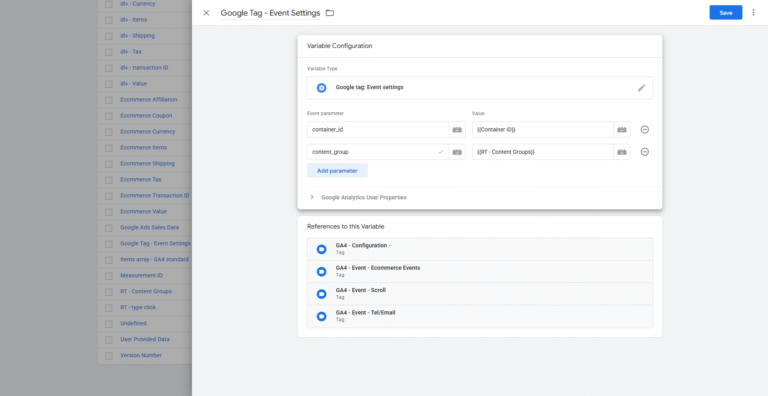
In my own tracking setups, I always use it to add the GTM container ID as a parameter.
It is incredibly useful for debugging because it gives you immediate evidence of where a particular snippet of information originates.
Here are a few other common scenarios where it shines:
But I’m sure in your own configurations, there is other examples that you can think of.
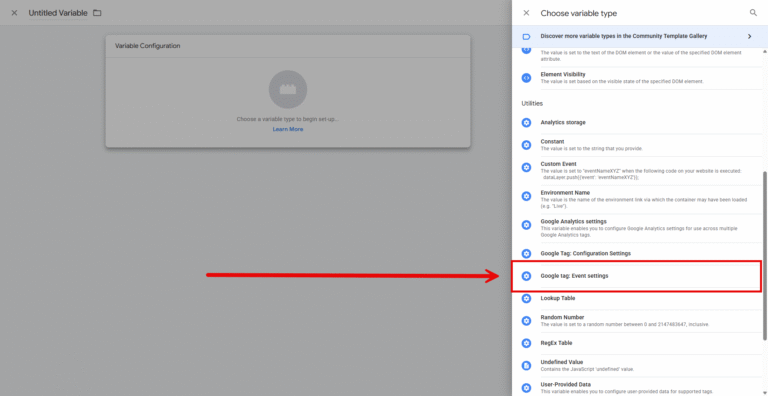
The process is very straightforward once you know where to look.
Add your key-value pairs under Event Parameters. Make sure these are the parameters you want to share across multiple events.
Add your Google Analytics User Properties if you want to track user-scoped data.
Give your variable a memorable name and click Save. Something simple as Google Analtyics – Event Settings works well.
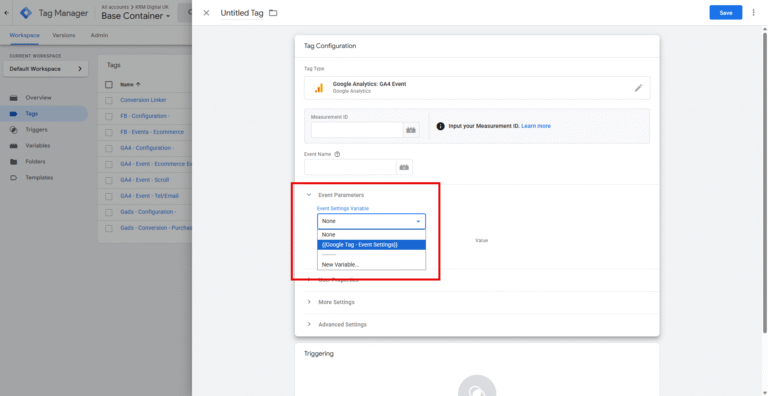
When you open a relevant tag later, rather than adding the parameter manually, you simply click the dropdown for the Event Settings Variable and select the one you just made.
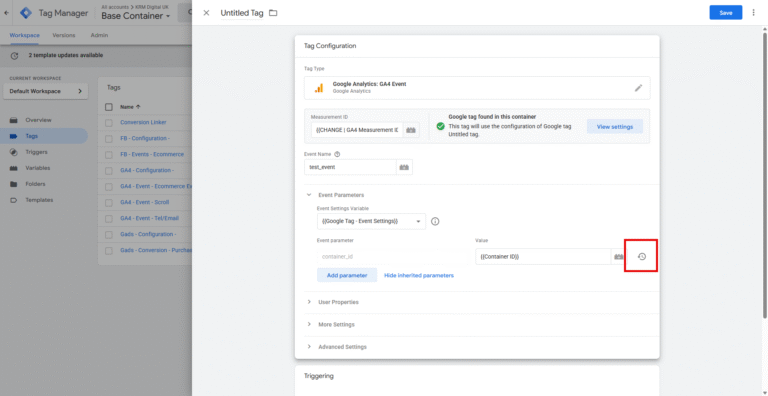
You can click to show inherited parameters just to be absolutely sure they are pulling through correctly.
You can override specific parameter values within individual events if you need a custom setup for just one tag.
If you ever change your mind, you can click the revert icon to go back to the original variable you are using.
You will likely spot a couple of different options in GTM. It is crucial to know the difference between them.
The Configuration Settings Variable contains much more static parameters and global configuration settings. You should really just use it on the main Google tag alone.
On the flip side, the Event Settings Variable is designed for parameters whose values can change on every event.
You can use it across numerous GA4 event tags.
Implement this function from the get-go.
Setting it up on a brand new container is easy.
Trying to use this feature after you have already created dozens of event tags will create a lot of unnecessary work.
Can I override parameters in an Event Settings Variable?
Yes. You can edit an inherited parameter value to overwrite it for a specific tag. You always have the option to revert to the original variable later.
What does a checkmark next to a GTM field name mean?
If you see a little check mark next to some of the field names in your setup, it means that the specific field is predefined by Google Tag Manager.

Is GA4 on all your pages? Find out how to crawl your site and review if your missing out on data.

Find out exactly where your website traffic is coming from with the page referrer dimension in GA4

Learn how to set up Google Tag Manager constants to streamline your GA4 and pixel tracking setups.

Learn how to set up Google Tag Manager constants to streamline your GA4 and pixel tracking setups.
Author
Hello, I'm Kyle Rushton McGregor!
I’m an experienced GA4 Specialist with a demonstrated history of working with Google Tag Manager and Looker Studio. I’m an international speaker who has trained 1000s of people on all things analytics.