
Understanding GA4 Events
Learn the four distinct types of GA4 events and how to set them up
When it comes to implementing a Meta Pixel (formerly Facebook Pixel) via Google Tag Manager, you are spoilt for choice.
You could rely on standard custom HTML. You could use the official Meta template. But if you want a setup that truly hums, there is a better way.
The Stape Facebook Pixel tag is my go to for implementation.
Let’s take a look.
In my experience managing complex e-commerce tracking setups, the biggest headache is usually data translation. The standout feature of the Stape tag is its native support for the GA4 data layer.
Instead of manually pulling variables and wrestling with custom Javascript, the Stape tag automatically reads your GA4 parameters.
It then neatly converts them into a format ready for Meta. It is an incredibly efficient way to work.
Furthermore, you can push events to the data layer with a unique event ID.
This removes the need for messy tag sequencing. You simply push your event name, and a consistent unique ID becomes available as a data layer value for all your subsequent tags.
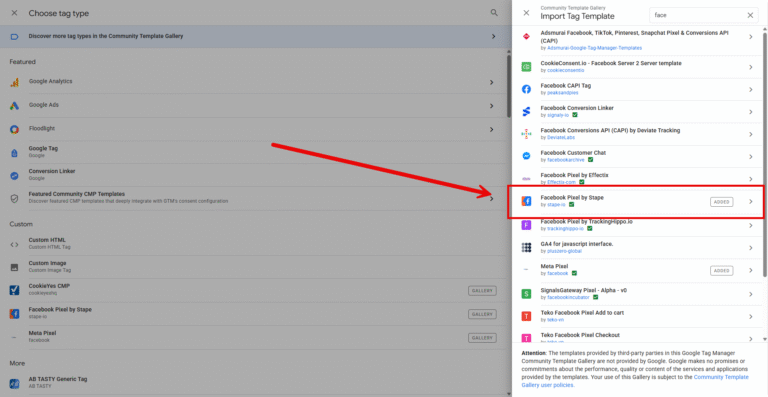
Getting started is straightforward. First, you need to head into your GTM Template Gallery and add the “Facebook Pixel by Stape” to your workspace.
Once added, navigate to your Tags section, click new, and select your newly installed Stape template.
Here is how you configure it for maximum impact.
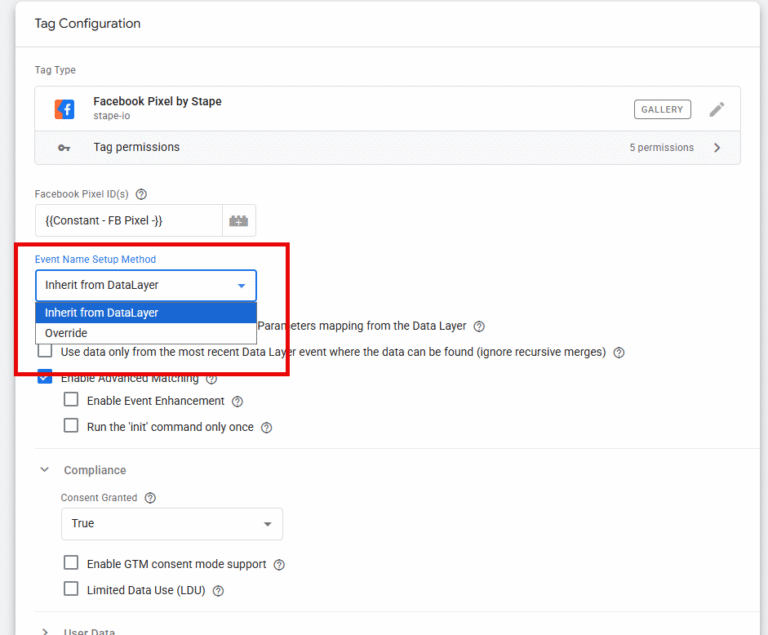
Enter your Meta Pixel ID. I highly recommend setting this up as a Constant Variable in GTM rather than pasting the raw number. It keeps your workspace tidy and makes future updates a breeze.
You have two choices here. You can either override the event name with a custom one, or you can choose “Inherit from Data Layer”.
For me this is brilliant for my e-commerce clients.
If you run an e-commerce site using standard GA4 events like add_to_cart or begin_checkout, choosing the inherit option is the smartest move.
The tag automatically maps the GA4 event name to its Meta equivalent.
Just ensure your triggers perfectly match the e-commerce events you are tracking.
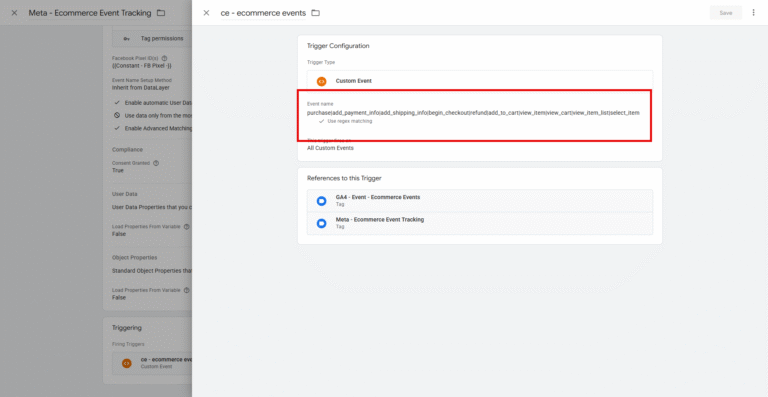
If you’re using a standard ecommerce set up you can use this regex to collect the events names.
So you’d choose custom event as the trigger, tick ‘Use Regex matching’ and add this:
purchase|add_payment_info|add_shipping_info|begin_checkout|refund|add_to_cart|view_item|view_cart|view_item_list|select_item
The pipe | means Or in Regex so you’re including all relevant ecommerce events
Tick the option to enable automatic data population from the data layer.
This instructs the tag to pull standard object and user properties automatically.
The tag natively understands GA4 common event data formats, saving you hours of manual variable creation.
This is where the Stape tag truly outshines basic custom HTML setups.
You can enable Advanced Matching to securely send user personal information to Meta.
Additionally, you can tick the box for Event Enhancement. This allows the tag to utilise local storage, holding onto data across different sessions to vastly improve your tracking accuracy.
If you are setting up Server-Side tracking, you can easily configure the tag to send an event ID parameter.
This ensures flawless event deduplication between your browser and server events.
Consent is non-negotiable, and the Stape template handles it beautifully.
Once your tag is configured with your ID, event mapping, and consent rules, you simply attach your desired trigger.
Review your setup in GTM Preview mode, check that your variables are pulling through correctly, and hit publish.
You now have a robust, privacy-compliant, and highly accurate Meta Pixel setup that requires half the maintenance of traditional methods.
Why should I use the Stape Facebook Pixel tag instead of custom HTML?
The Stape tag natively parses GA4 data layer events into Meta formats, supports seamless event deduplication via unique IDs, and integrates directly with Google Consent Mode. It drastically reduces manual configuration.
How does the Stape tag handle e-commerce events?
By selecting “Inherit from Data Layer”, the Stape tag automatically translates standard GA4 e-commerce events (like add_to_cart) into the correct standard Meta events, provided your data layer structure is correct.
Does this setup support Google Consent Mode?
Yes. You can enable GTM Consent Mode directly within the tag settings. It will check the user’s ad_storage status via your Consent Management Platform and adjust the pixel’s behaviour accordingly.

Learn the four distinct types of GA4 events and how to set them up

Use the event settings variable in Google Tag Manager to speed up your event build and reduce errors.

Is GA4 on all your pages? Find out how to crawl your site and review if your missing out on data.

Find out exactly where your website traffic is coming from with the page referrer dimension in GA4
Author
Hello, I'm Kyle Rushton McGregor!
I’m an experienced GA4 Specialist with a demonstrated history of working with Google Tag Manager and Looker Studio. I’m an international speaker who has trained 1000s of people on all things analytics.