
Campaign data import validation report

August 18, 2026

Importing campaign data from LinkedIn, Meta, or TikTok into Google Analytics 4 ought to give you a complete view of your return on ad spend (ROAS).

Too often, cost, click, or impression data fails to link up with user sessions.

You end up with broken reporting and incomplete attribution metrics.

To rectify that, Google has introduced the Campaign Data Import Validation Report (snappy right?).

This tool assesses your imported, non-Google marketing traffic and confirms whether your off-platform ad spend joins correctly with actual user activity.

Table of Contents

Key Takeaways

    • Data Verification: The report evaluates pre-import traffic and post-import joinability for non-Google channels.

    • Default Filters: It automatically isolates PAID manual campaigns, filtering out Google search and organic mediums.

    • Match Rate Metric: Coverage rates highlight what percentage of your ad rows successfully match collected Analytics sessions.

    • Actionable Scopes: Helps pinpoint campaigns lacking performance metrics like Ad Cost, Ad Clicks, or Ad Impressions.

What Does This Validation Report Actually Do?

When you upload ad spend from non-Google channels, GA4 attempts to match those uploaded rows with recorded website sessions using manual tagging attributes like source, medium, and campaign name.

If the tags do not match up perfectly, the imported numbers sit in isolation.

The Campaign Data Import Validation Report gives you a clear window into that matching process.

It calculates match rates known as coverage rate to reveal where your cost, click, and impression metrics link cleanly to user activity, and where they fall short.

How to find the report

Finding the report inside the interface takes just a few clicks:

  1. Select Reports from the left side panel.
  2. Expand the Data Import collection.
  3. Select Campaign data import validation report.

If the report does not appear in your menu, ask a property Editor or Administrator to add it back via the report customisation menu.

Keep in mind that the report is session-scoped. It applies an automatic filter to show only PAID manual campaigns, excluding Google sources.

You can remove this default filter whenever you want to inspect all property traffic (but then, what’s the point of this report).

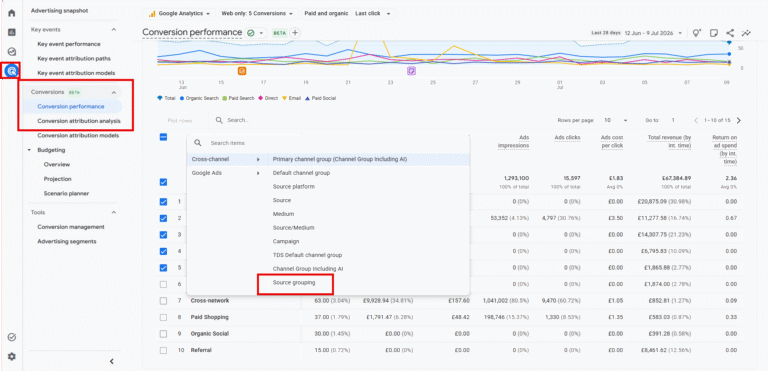
Source Grouping Report

Join Status

The report groups your performance using key dimensions such as Source/Medium, Campaign ID, Campaign name, Source platform, and Default channel group.

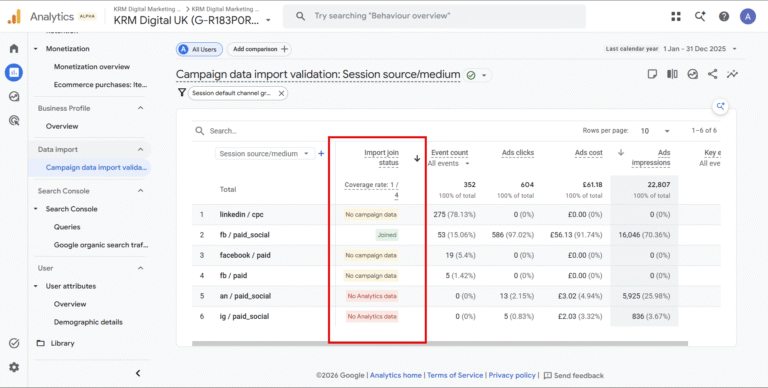
The primary metric to check is the Import join status.

This is what the different status’ mean:

  • Joined: Your imported ad data successfully linked with user session activity in Google Analytics.
  • No campaign data: External campaign data was either omitted from the upload or failed to match dimensions correctly.
  • No Analytics data: Data was imported, but no matching session activity was captured; it is reported without session metrics.

Understanding your Coverage rate is equally vital.

This measures the ratio of successfully joined status rows against total collected Analytics rows. A low coverage rate signals that your manual tagging protocol needs tightening up across external ad platforms.

Import join status

Summary

Verifying your imported campaign data ensures every pound of off-platform ad spend is properly accounted for in GA4.

By regularly monitoring your join status and coverage rate, you eliminate tracking gaps and ensure your marketing attribution reflects real performance

Frequently Asked Questions

Why is my imported cost data showing under ‘No Analytics data’?
This usually occurs when the Source, Medium, or Campaign ID values in your imported CSV file do not match the incoming UTM parameters attached to user sessions.

Can I view Google Ads performance in this report?
The report filters out Google sources by default to focus on non-Google paid campaigns. However, removing the default filter displays all traffic sources across your property.

What dimensions can I use to break down my coverage rate?
You can group your campaign performance by Source/Medium, Campaign ID, Campaign name, Source platform, and Default channel group.

Kyle

Author

Hello, I'm Kyle Rushton McGregor!

I’m an experienced GA4 Specialist with a demonstrated history of working with Google Tag Manager and Looker Studio. I’m an international speaker who has trained 1000s of people on all things analytics.

Scroll to Top