Optimized Tagging Experience
Learn all about the Optimized Tagging Experience in Google Tag Manager

Few things trigger that sinking feeling quite like opening a client dashboard only to spot a flatlined conversion line.
You check your core metrics, and suddenly your purchase or add_to_cart events show zero activity.
When an event suddenly stops firing, your immediate priority is not to rewrite all your tags.
Your first step is to uncover the exact date and time the data flow dried up.
Once you isolate the specific moment things broke, finding the root cause becomes straightforward.
Here is how to isolate the drop-off in Google Analytics 4, diagnose the underlying trigger failure, and get your conversion reporting back on track.
Isolate the drop-off date first: Before troubleshooting tag configurations, build a line chart Exploration in GA4 to identify the exact day tracking flatlined.
Filter by specific event parameters: Plot Event count against Date and filter by individual event names (such as purchase or add_to_cart) for a clean visual demarcation.
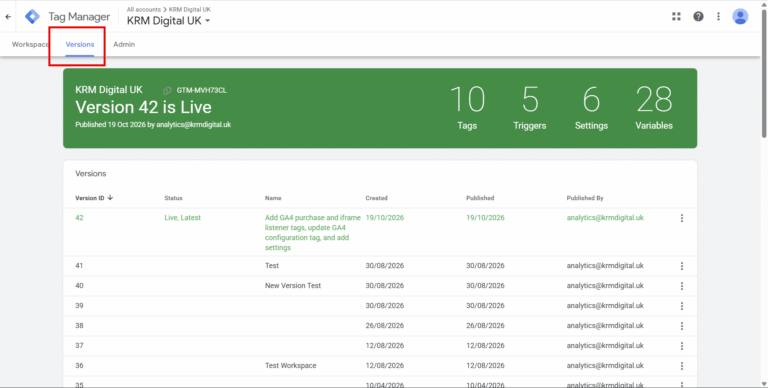
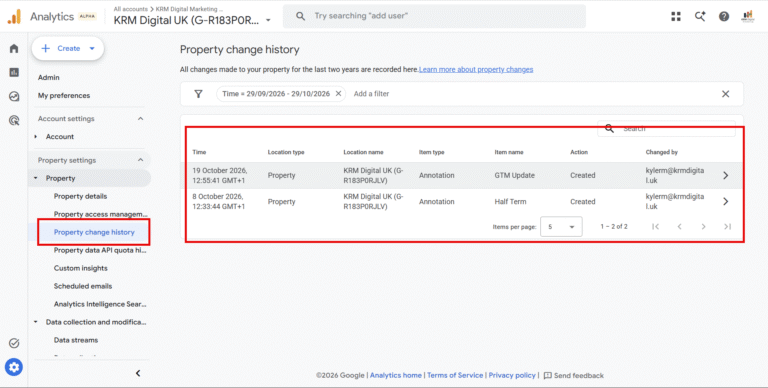
Cross-reference version histories: Use your identified date stamp to inspect Google Tag Manager container versions and GA4 change history for culprit code updates or URL tweaks.
Implement automated safeguards: Protect future conversion pipelines by pairing manual inspections with proactive custom alerts and clear container release notes.
Tracking setups rarely fail in isolation. Web platforms are dynamic environments where routine updates frequently cause unintended consequences for analytics tags.
In most cases, an event stops sending data because of one of three operational changes:
Also – just throwing it out there, it might not be broken, it’s just people aren’t triggering it on the site.
You might already have custom alerts configured for primary conversion actions (known as key events in GA4). Even so, secondary events or micro-conversions often slip beneath the radar until someone notices an empty report weeks down the line.
To fix it, you need a precise timeline.
Standard GA4 reports are helpful for aggregate trends, but they lack the granularity needed to inspect individual broken events quickly.
Instead, head over to the Explore section and build a dedicated free-form line chart.
Follow these steps to build your diagnostic report:
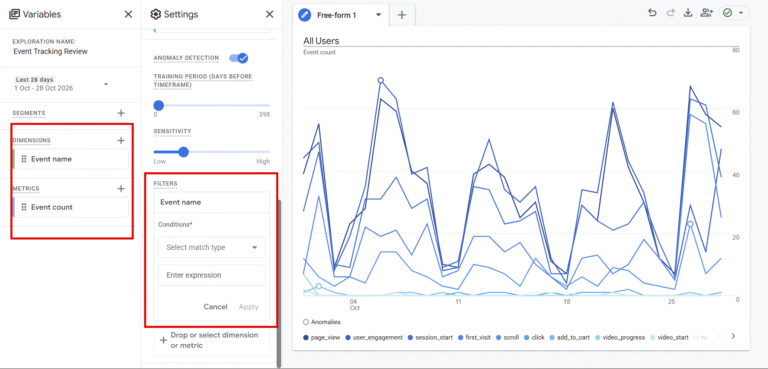
Once applied, the line chart renders an uninterrupted history of your event volume over time.
If tracking broke abruptly, you will see a sharp drop directly to zero.
That sudden cliff edge provides your single most valuable diagnostic clue: the exact calendar date when data stopped transmitting.
Where Should You Look Once You Know the Date?
Knowing when the event broke allows you to stop guessing and start forensic verification.
Armed with that date, inspect three specific records:
If you manage your tags via Google Tag Manager (GTM), head straight to the Versions tab.
Look for any container publish events that occurred on or just before your identified date.
Check who published the container and review the included workspaces.
Did an editor tweak a click trigger?
Was a variable renamed?
If the timeline matches your GA4 drop-off, you have almost certainly found your culprit.
Do not overlook changes made directly within your GA4 property settings. Head to Admin > Property > Property Change History.
Filter through modifications made around your target date.
Check whether an administrator altered data stream settings, changed event modification rules, or adjusted internal traffic filters that might be stripping out genuine event data.
If your GTM container and GA4 settings remained untouched, the issue lies on the website itself.
Cross-reference the drop-off date with your team’s development release notes or git commit history.
Did the dev team roll out a new checkout flow that afternoon?
Did an e-commerce plugin auto-update overnight?
Matching your analytics drop-off with a specific code deployment gives your development team the exact context they need to patch the broken trigger quickly.
And here’s the thing that will make this soooo much easier, use annotations in GA4. That will automatically give you context to your data.
While figuring it all out, keep these practical factors in mind:
When critical tracking goes dark, guessing what went wrong wastes valuable hours. Building a quick line chart Exploration in GA4 gives you a clear visual demarcation of the drop-off date, turning an overwhelming tracking mystery into a focused diagnostic investigation.
Once you know the exact day data stopped flowing, checking your GTM container history, GA4 audit log, and site release notes makes diagnosing the issue painless.
How do I set up alerts so I do not miss future broken events?
In GA4, go to the Reports overview, locate the Insights card, and select Manage insights. From there, you can build custom insights that trigger an automated email whenever critical event counts (such as leads or transactions) drop by a specific percentage compared to the previous week.
Why is my event visible in DebugView but missing from reports?
If events appear in DebugView during live testing but do not show up in your production reports, check your active data filters. An active filter blocking internal IP addresses or staging traffic might be excluding your test interactions from production reporting views.
Can a Content Security Policy (CSP) block GA4 events?
Yes. If your development team updates your website’s Content Security Policy headers without whitelisting the appropriate Google Analytics endpoints, the browser will block outgoing event pings before they ever leave the user’s browser.
Learn all about the Optimized Tagging Experience in Google Tag Manager

Discover Version Name and Version Description best practice

Learn how to declutter, condense, and codify your setup for streamlined maintenance and flawless tracking accuracy.

Learn actionable Google Analytics 4 strategies to spot organic traffic anomalies, fix content decay, and prove SEO value to stakeholders.

Author
Hello, I'm Kyle Rushton McGregor!
I’m an experienced GA4 Specialist with a demonstrated history of working with Google Tag Manager and Looker Studio. I’m an international speaker who has trained 1000s of people on all things analytics.