AI Traffic In GA4
- First Published: January 2, 2025
- Last Modified: November 24, 2025
AI tools are the talk of the town, but how do you measure their impact on your website traffic?
With Google Analytics 4 (GA4), you can track AI-driven traffic sources and assess their contribution to your site.
This guide will walk you through the process of setting up tracking for AI tools in GA4, from simple filtering to creating a dedicated AI traffic channel.
So let’s dig into what it means and how you can leverage the information.
Table of Contents
Video Run Through
Why Track AI Traffic?
Understanding AI-generated traffic is crucial for:
- Evaluating the role of AI tools like ChatGPT, Perplexity.ai, and Beacons.ai in driving visitors.
- Adjusting your SEO and marketing strategies based on AI-driven trends.
- Making data-backed decisions about AI-focused content and user engagement.
- You’re boss keeps talking about it.
How to track AI traffic in GA4
The report section
If you just want a quick look at how much traffic is coming from specific AI tools, you can apply a simple session source filter:
-
Go to Reports and navigate to the Traffic Acquisition Report.
-
Add a filter for Session Source.
-
Enter the AI tool’s domain (e.g.,
chatgpt.com) and apply the filter. -
You’ll now see how many users are coming from that AI source.
This method is useful for a one-off check, but for a long-term solution, setting up a dedicated AI channel group is the best approach. Of course, you could customise your report section to have reports ready filtered for AI.
Building an Exploration
Here’s one I would build.
I’d add in session source / medium as a dimension, and then include metrics such as sessions, new users, key events etc.
I would then use a filter to show AI channels only.
This is the regex
.*chatgpt\.com.*|.*perplexity.*|.*edgepilot.*|.*edgeservices.*|.*copilot\.microsoft\.com.*|.*openai\.com.*|.*gemini\.google\.com.*|.*nimble\.ai.*|.*iask\.ai.*|.*claude\.ai.*|.*aitastic\.app.*|.*bnngpt\.com.*|.*writesonic\.com.*|.*copy\.ai.*|.*chat-gpt\.org.*
Creating an AI Channel Group in GA4
To systematically track AI traffic, you need to create a new channel group:
Step 1: Create a New Channel Group
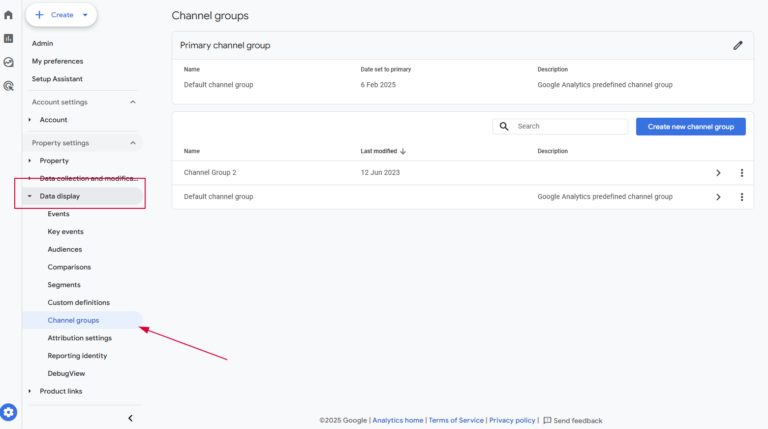
Go to the Admin section in GA4.
Click on Channel Groups.
Select Create New Channel Group.
Name it Primary Channel Group with AI (or a similar name that suits your setup).
Optionally, add a description.
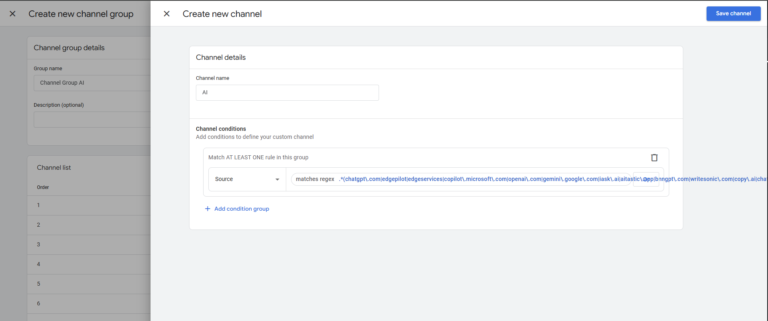
Step 2: Define an AI Channel
Add a new channel and name it AI.
Set the condition:
Parameter: Session Source
Condition: Matches Regex
Regex Pattern: (Use a regex that includes common AI tools such as
chatgpt\.com|perplexity\.ai|beacons\.ai|coursefinder\.ai)
Click Apply and Save Channel.
This is the regex
.*chatgpt\.com.*|.*perplexity.*|.*edgepilot.*|.*edgeservices.*|.*copilot\.microsoft\.com.*|.*openai\.com.*|.*gemini\.google\.com.*|.*nimble\.ai.*|.*iask\.ai.*|.*claude\.ai.*|.*aitastic\.app.*|.*bnngpt\.com.*|.*writesonic\.com.*|.*copy\.ai.*|.*chat-gpt\.org.*
Step 3: Reorder Channels for Proper Categorisation
GA4 assigns traffic to the first matching channel, so it’s important to reorder the AI channel:
Move the AI channel to the top of the list.
Click Apply and Save Group.
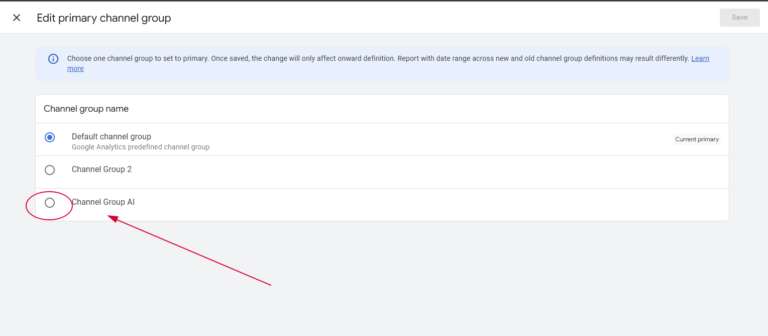
Step 4: Make AI the Primary Channel Group
Click the pencil icon next to the primary channel group setting.
Select Primary Channel with AI as the default.
Click Save.
Viewing AI Traffic in Reports
Once your AI channel group is set up, head back to the Traffic Acquisition Report (although any traffic report will do:
You should now see AI listed as a traffic channel.
Use the Session Source filter to drill down into specific AI tools.
Example AI traffic sources might include:
ChatGPT.com
Perplexity.ai
Beacons.ai
CourseFinder.ai
By setting up an AI channel in GA4, you can get a clearer picture of how AI tools impact your website traffic.
This may help to define your strategy going forward with AI and Generative Engine Optimisation (GEO) (oh good, another acronym).
Looker Studio Report
I’ve built a Looker Studio report that shows you how many users and sessions are coming from AI tools.
All you have to do is click the link, and add your GA4 property.


How to Add Meta Pixel in GTM
Learn how to implement the Meta Pixel in Google Tag Manager using the Stape template.
Author
Hello, I'm Kyle Rushton McGregor!
I’m an experienced GA4 Specialist with a demonstrated history of working with Google Tag Manager and Looker Studio. I’m an international speaker who has trained 1000s of people on all things analytics.