Constants in Google Tag Manager

March 29, 2026

Setting up analytics events across multiple client accounts takes up a serious chunk of time.

You are constantly jumping between tabs, trying to hunt down the exact Google Analytics 4 measurement ID.

Even if you know the quick trick of typing ‘tracking’ into the GA4 search bar, it is still a tedious, repetitive task.

When you manage tags for a living, efficiency is everything.

That is exactly where a constant variable in Google Tag Manager (GTM) proves invaluable.

Table of Contents

Key Takeaways

  • Constants save you from manually copying and pasting tracking IDs.
  • They work seamlessly for GA4, Facebook Pixels, Microsoft UET, and more.
  • You can pair constants with lookup tables for multi-site setups.
  • A clear naming convention future-proofs your container for other team members.

What is a Constant in Google Tag Manager?

A constant is simply a user-defined variable where the value is locked to a specific text string you provide.

Once you set it up, you can reference this variable across all your tags.

In my own client accounts, configuring constants is one of the very first thing I check and amend during an audit.

It immediately cleans up the workspace.

You do not need to keep finding your measurement ID every time you build a new tag.

You just pick your user-defined variable and move straight on to the next task.

It is also incredibly versatile.

While it is perfect for GA4, you can apply the exact same logic to your Facebook Pixel ID, your Microsoft UET, or any other static string of text you frequently use.

How Do You Set a Constant?

The process is remarkably straightforward and takes less than a minute.

  • Open your Google Tag Manager workspace.
  • Click on ‘Variables’ in the left-hand menu.
  • Scroll down to ‘User-Defined Variables’ and click ‘New’.
  • Under the ‘Utilities’ category, select ‘Constant’.
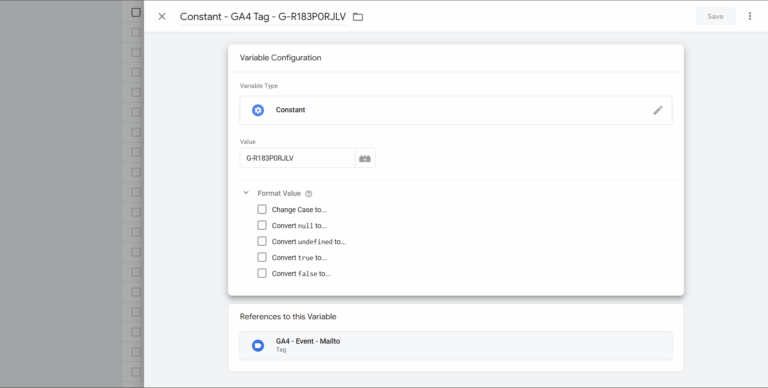
  • Paste your GA4 measurement ID directly into the value box.
Constant GA4

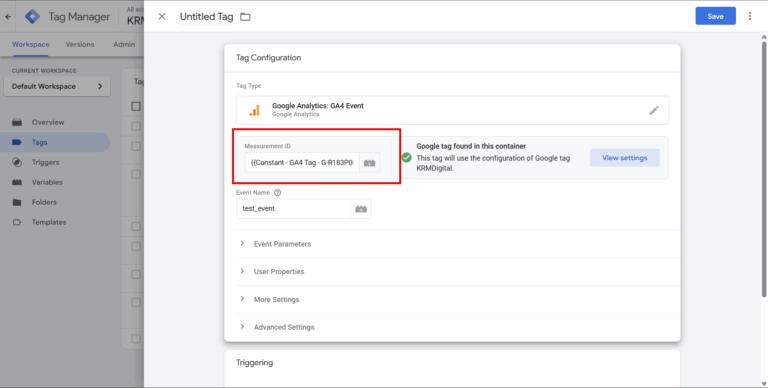
Now, whenever you create a new GA4 event tag, you can either click the building block icon to open up the variable menu, or type two curly braces {{ to quickly search for your saved ID.

What About Managing Multiple Domains?

This is where things get genuinely interesting. You are not restricted to assigning a single, static text string.

If you manage several websites out of a single Google Tag Manager container, you can assign your constant using a lookup table or a regex table.

For instance, you could configure a lookup table defined by the hostname.

The table checks the URL, finds the matching property, and feeds the correct measurement ID into your constant variable automatically.

It is a highly efficient way to scale your operations without duplicating endless tags.

Naming Conventions

A messy container is a nightmare for succession planning. And even for yourself!

I can’t tell you how many times I’ve gone into a Google Tag Manager container and my first project is just figuring it all out!

If you ever leave a project or hand an account back to a client, the next person needs to understand exactly how the tags are configured.

A solid naming convention makes this effortless.

I highly recommend structuring your variable names like this:

Variable – Tool – Configuration ID

Therefore, a constant name would be:

Constant – GA4 – G-1234567

This tells anyone looking at the backend exactly what the variable does, the platform it serves, and the specific property it targets.

It also makes it vastly easier to search for when you are using the curly brackets approach.

If someone else takes over, they will be able to find and apply that constant without any guesswork.

Using a constant variable is a tiny operational shift that saves countless hours of administration.

By removing the need to constantly hunt for tracking IDs, you reduce the margin for human error and keep your container incredibly organised.

Frequently Asked Questions

What is a constant variable in GTM?

A constant is a user-defined variable that holds a static string of text, such as an analytics tracking ID. It allows you to reuse the same value across multiple tags without typing it out manually each time.

Can I use GTM constants for Facebook Pixels?

Yes. You can create a constant variable for any static ID, including Facebook Pixels, Microsoft UET tags, and custom HTML scripts.

How do I call a variable in a GTM tag?

When configuring a tag, you can reference a variable by typing two opening curly braces {{ followed by the variable name, or by clicking the variable icon next to the input field.

Kyle

Author

Hello, I'm Kyle Rushton McGregor!

I’m an experienced GA4 Specialist with a demonstrated history of working with Google Tag Manager and Looker Studio. I’m an international speaker who has trained 1000s of people on all things analytics.

Scroll to Top