
Data Studio Tips
Speed up your Data Studio reporting with practical shortcut, layout, and component tips
I’m a big believer in leading from the front.
I saw someone searching for this on my website.
So I wrote about it.
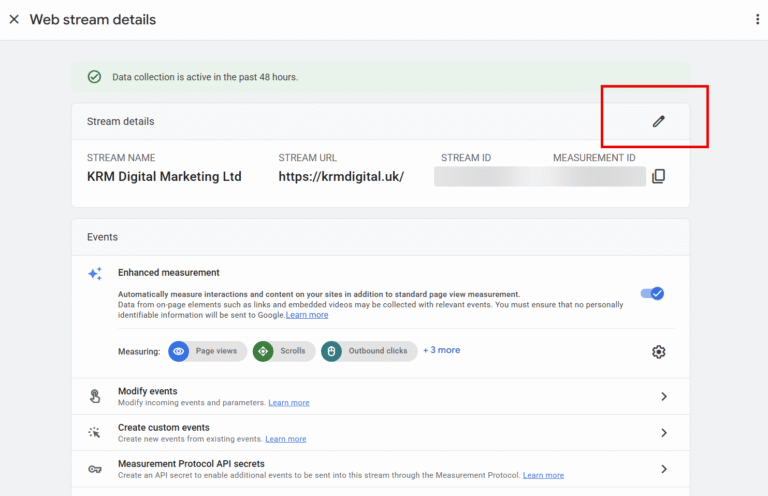
I’m going to run through approaches to editing and deleting a data stream.
Property-level Editor permissions (or higher) are required to modify or delete data streams.
You can update a stream’s name, URL domain, and path without creating a brand new stream.
Deleting inactive data streams keeps your analytics environment organised and accurate.
Always remove connected site tags before deleting a web data stream to prevent tracking errors.
Before changing any settings, let’s look at your user permissions.
To modify or delete a data stream, you must hold Editor or Administrator access at the property level.
If you only have Viewer or Analyst access, those edit options will appear greyed out in the interface.
Check with your analytics manager to update your account role before proceeding.
Rebranding your business or moving your site to a new domain doesn’t mean starting your analytics setup from scratch. You can update existing stream details directly from the admin menu.
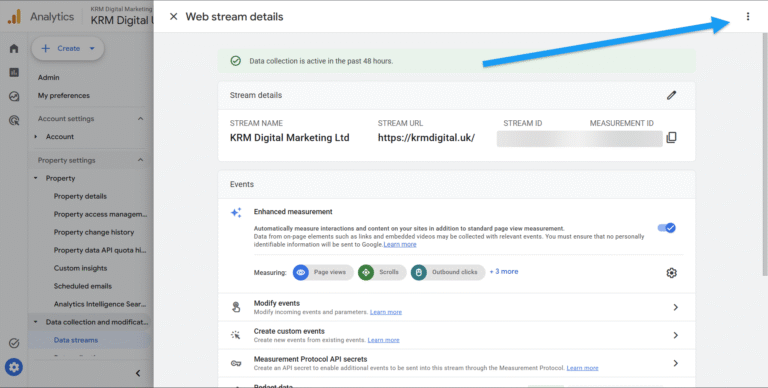
Here is the exact click-path to update your details:
In my own campaigns, keeping stream names precise stops agency partners from accidentally pulling report data from old staging sites or retired subdomains.
Changing the name and URL is just the start (oof how exciting).
The stream details screen lets you refine how your site collects and processes incoming visitor data:
Over time, properties often accumulate test streams or legacy collection paths that no longer process data. Removing inactive streams is a practical way to tidy up your workspace.
Follow these steps to remove a stream:
So there you have it – from a search on my site, to a blog.
That’s everything about updating / amending a data stream in GA4.
Does editing a data stream name change past data in GA4?
No. Renaming a data stream only updates how that stream is labelled moving forward. Historical data remains completely intact and unaffected.
What happens if I delete a data stream by mistake?
Deleting a data stream stops all future data collection for that stream. While historical data collected up to that point remains in your reports, the stream configuration itself cannot be restored, so double-check before confirming deletion.
Why can’t I see the option to delete my data stream?
If the delete option is missing or greyed out, you likely do not have Editor or Administrator permissions for the property. Ask your account administrator to update your access level.

Speed up your Data Studio reporting with practical shortcut, layout, and component tips
Validate non-Google ad spend, clicks, and impressions in GA4 using the new Campaign Data Import Validation Report.

Learn how adding the GTM Container ID variable makes debugging faster and keeps your reporting accurate.

Learn how to use Google Tag Manager to capture granular scroll depth and improve your content reports.

Author
Hello, I'm Kyle Rushton McGregor!
I’m an experienced GA4 Specialist with a demonstrated history of working with Google Tag Manager and Looker Studio. I’m an international speaker who has trained 1000s of people on all things analytics.